
Objective
Update received or moved quantities, assign ownership, confirm fulfillment time, and mark lists fulfilled or partially fulfilled.
Video walkthroughs
Follow along on YouTube with narration and English captions. Each video opens in a new tab so you can keep this guide open.
Prerequisites
- A planned replenishment or transfer list exists.
- You have access to the list and its location.
- Owners and managers can assign lists to teammates.
Step-by-step Instructions
Open a list
On Replenishment Lists, use the Open tab and click View for the supplier order or transfer. Transfer rows may also show Fulfilled and Partial actions directly in the table.
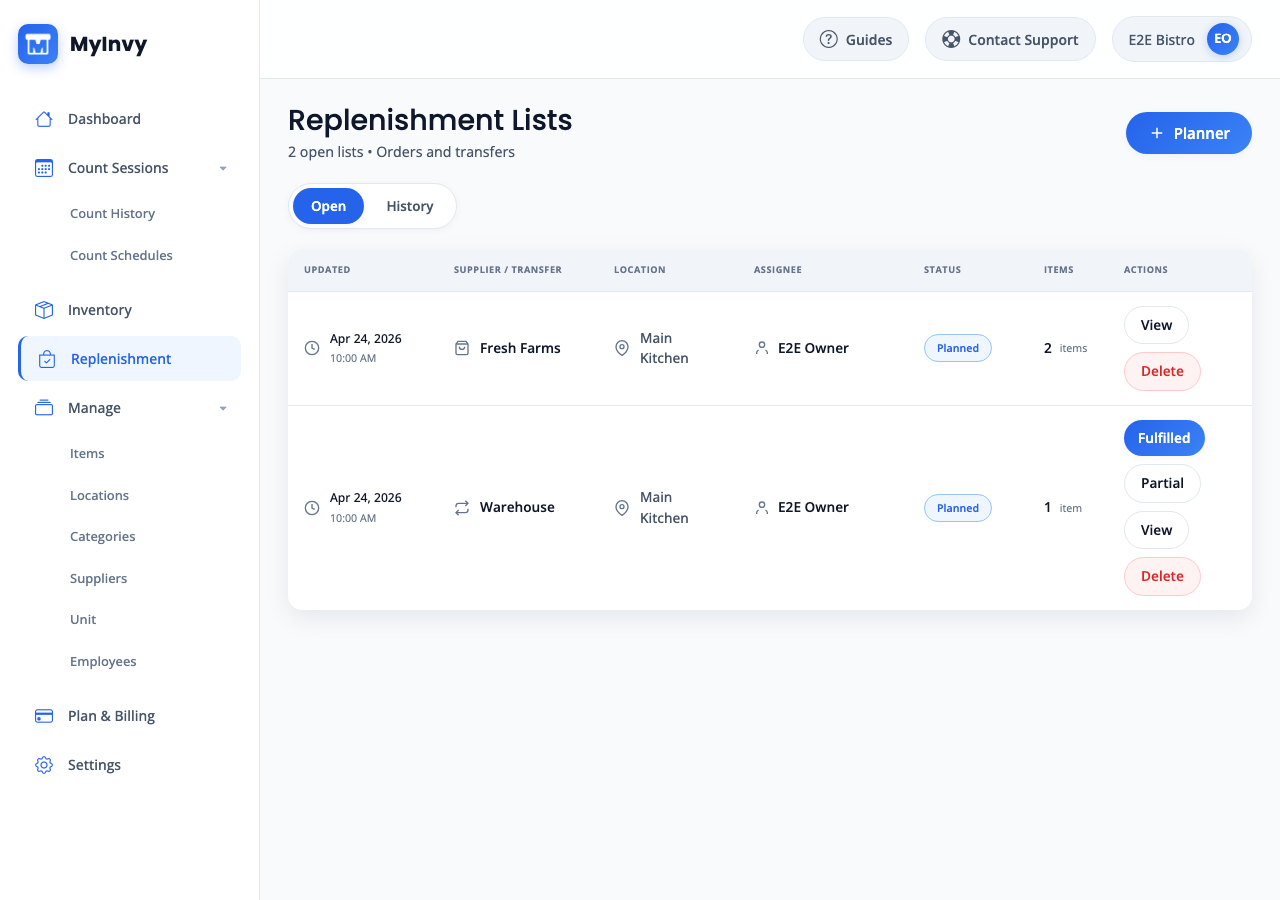
Replenishment Lists row with View, Delete, Fulfilled, and Partial actions. Update notes and assignment
For supplier lists, edit Shopping list note and click Update. For transfers, edit Transfer note and click Update. Click Assign, choose a teammate, and click Assign when ownership should be tracked.
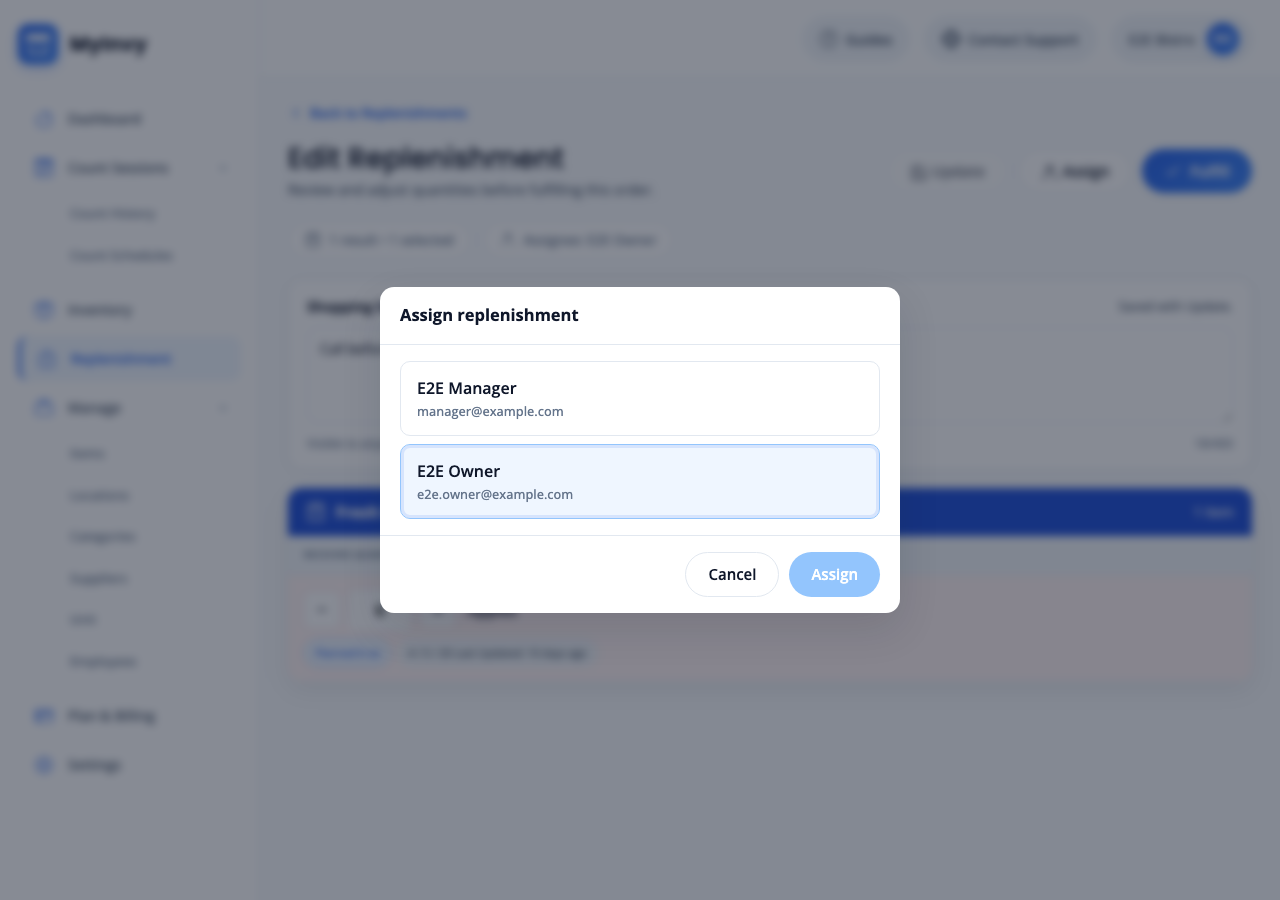
Edit Replenishment or transfer detail with note field, Update, Assign, and assignee display. Confirm actual quantities
For supplier replenishment, update Received Quantity for each item. For transfers, update Transferred Out and Transferred In quantities. Lower-than-planned quantities create a partial fulfillment state.
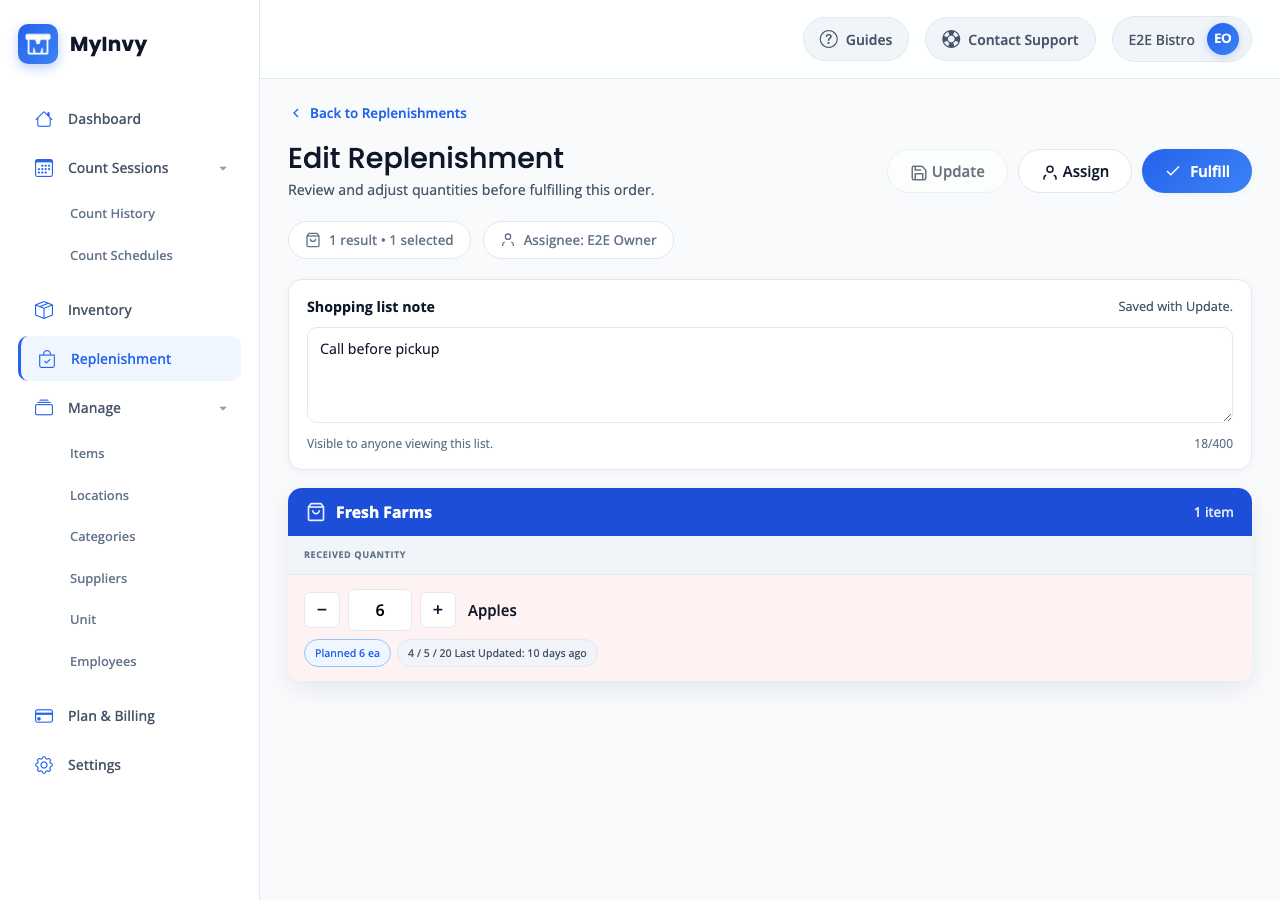
fulfillment quantity controls for Received Quantity, Transferred Out, and Transferred In. Fulfill the list
Click Fulfill. In Confirm fulfillment time, adjust Fulfillment time if needed and click Confirm. Review any conflict warning before continuing.
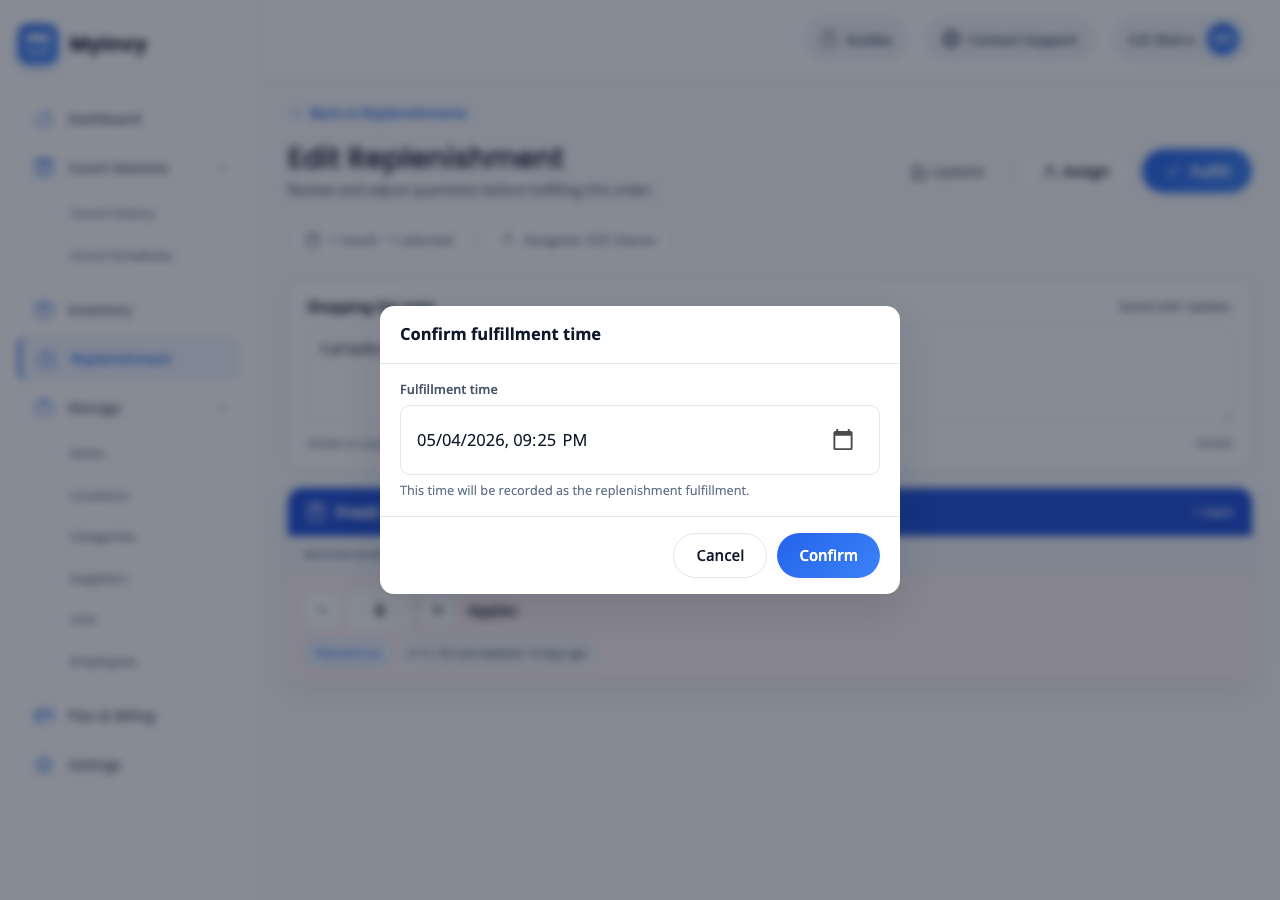
Confirm fulfillment time modal and final Fulfilled or Partially Fulfilled status.
Success Criteria
The list moves from Open to History with Fulfilled or Partially Fulfilled status, and inventory reflects the received or transferred quantities.
Troubleshooting Tips
- If conflict warnings appear, review recent counts before confirming fulfillment time.
- If Assign is missing, your role may not allow assignment changes.
- If the list stays open after Confirm, review the error message and retry after correcting quantities or connection issues.