
Objective
Use Inventory to scan on-hand quantities, low-stock status, stocking-area quantities, thresholds, and location-level values.
Video walkthroughs
Follow along on YouTube with narration and English captions. Each video opens in a new tab so you can keep this guide open.
How to Check Stock Levels and Correct On-Hand Quantities in MyInvy
Find stock by location and unit, understand quantity labels, and correct on-hand values.
Watch on YouTubeReorder Point vs. Par Level: Set Up Your Restocking Rules in MyInvy
Set reorder points and par levels, then review the resulting replenishment suggestion.
Watch on YouTube
Prerequisites
- You are signed in with access to at least one location.
- Items have location or stocking-area assignments.
Step-by-step Instructions
Open Inventory
Click Inventory in the sidebar. Review item cards and stocking-area quantities for the locations available to your role.
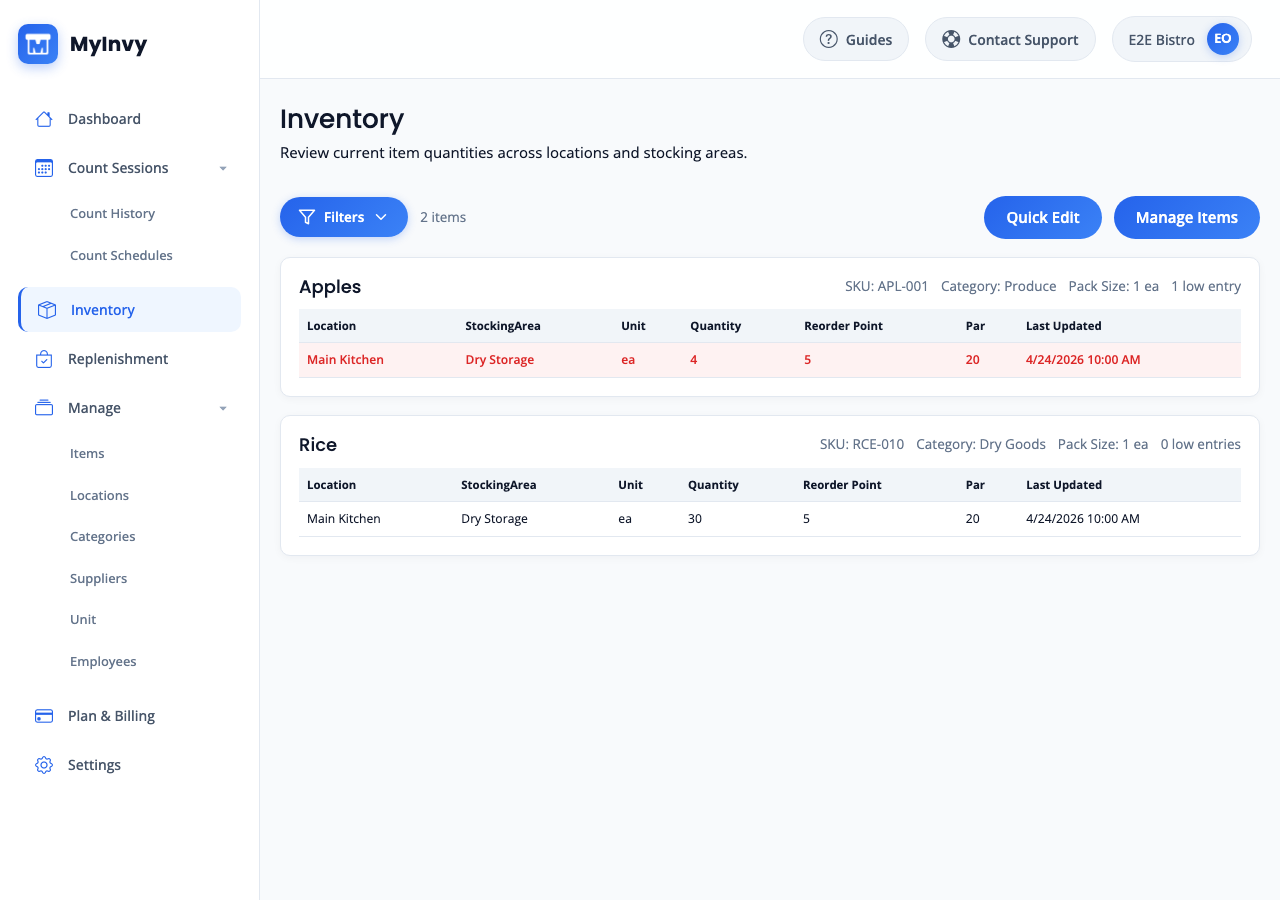
Inventory page with item cards, stocking-area rows, and low-stock context. Filter the list
Click Filters, then use Search, Location, Supplier, Category, or Show low quantity only. Use active filter chips to remove individual filters or Clear all to reset.
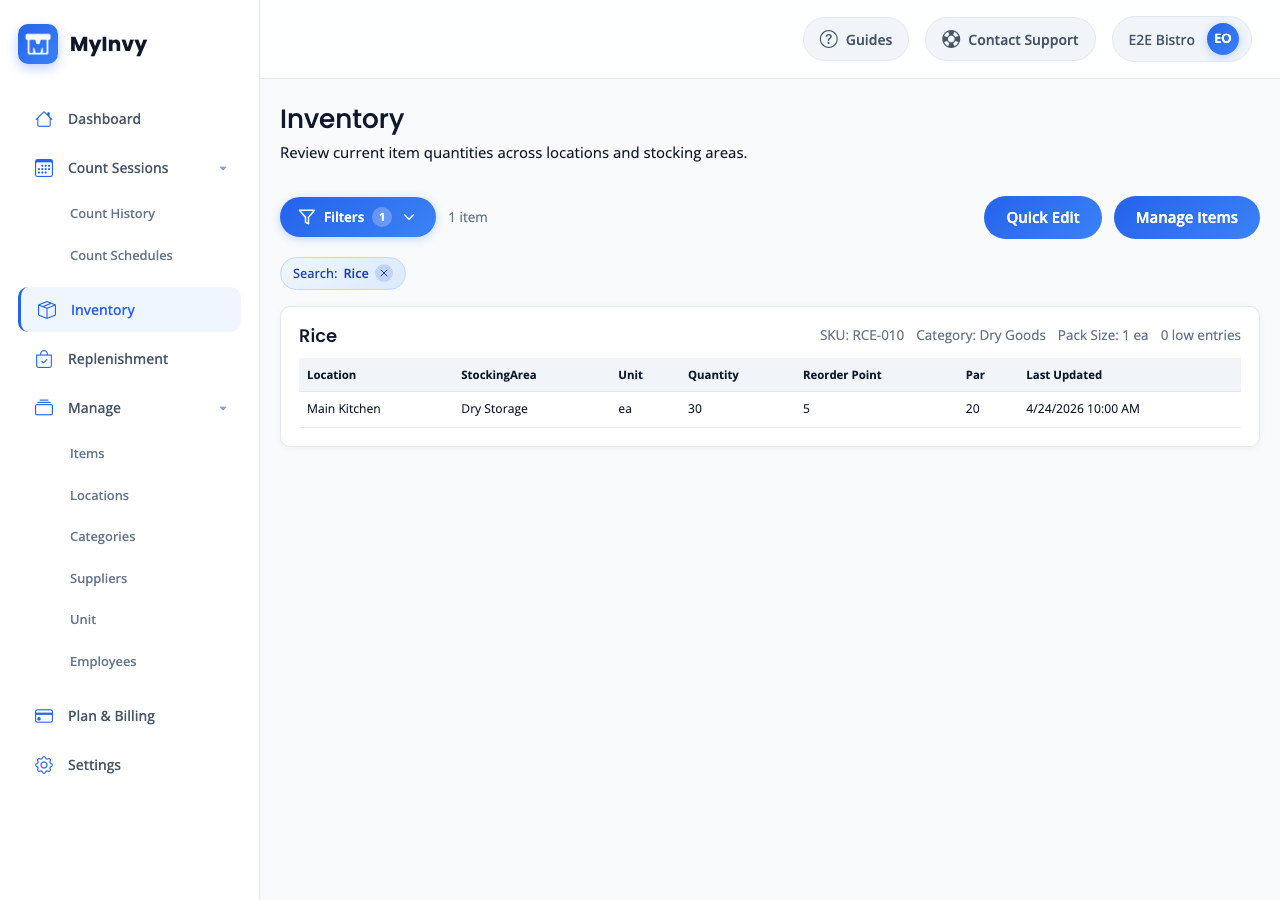
Inventory filter panel with search, location, supplier, category, low quantity, and clear controls. Review low-stock signals
Look for Low quantity indicators and stocking-area rows where on-hand quantity is below Reorder Point. Use this information before creating replenishment drafts.
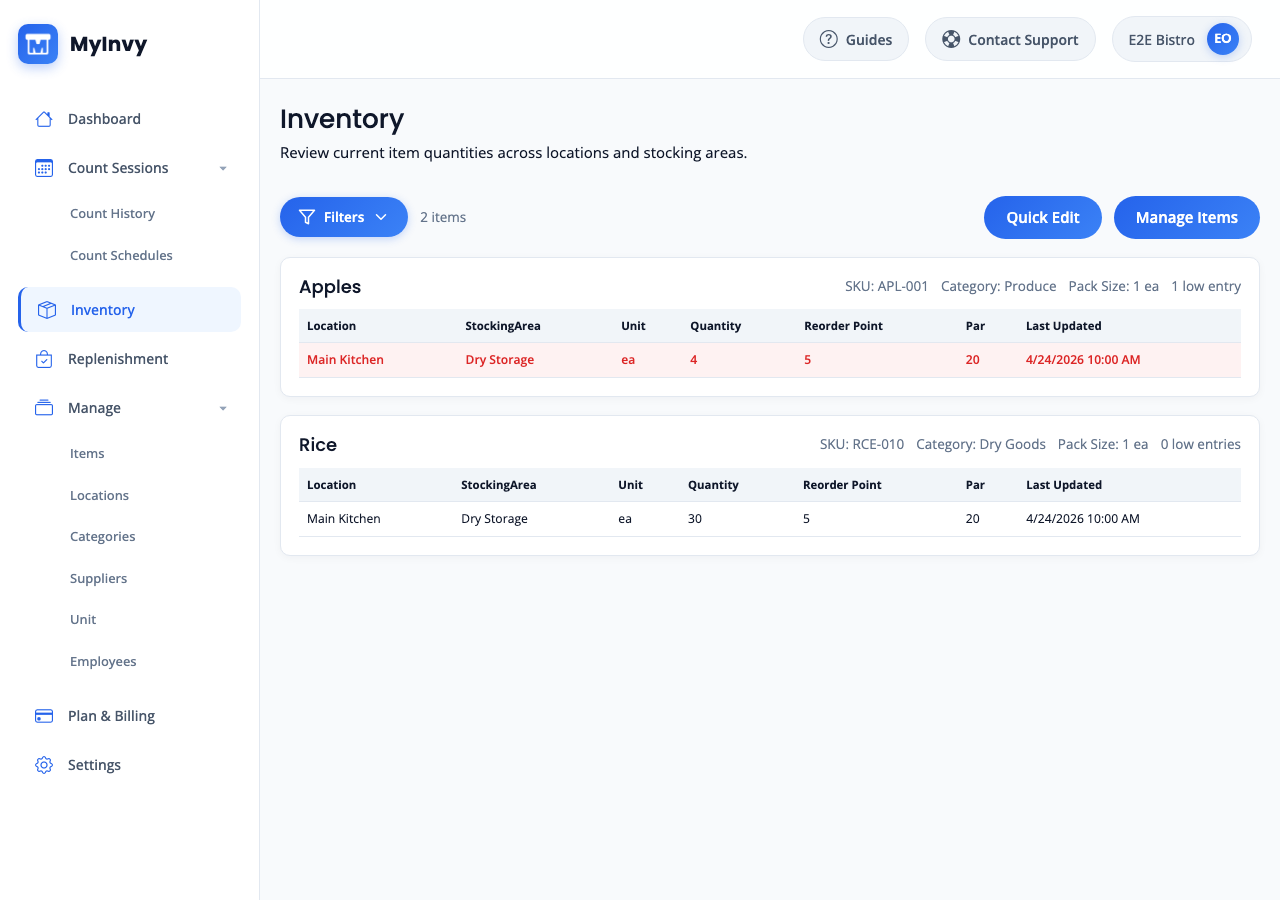
low-stock inventory item with flagged rows below reorder point. Quick-edit inventory values
Click Quick Edit. Update stocking-area quantities, Reorder, or Par values. Click Save Changes. Click Cancel to discard, and confirm the discard prompt when changes are unsaved.
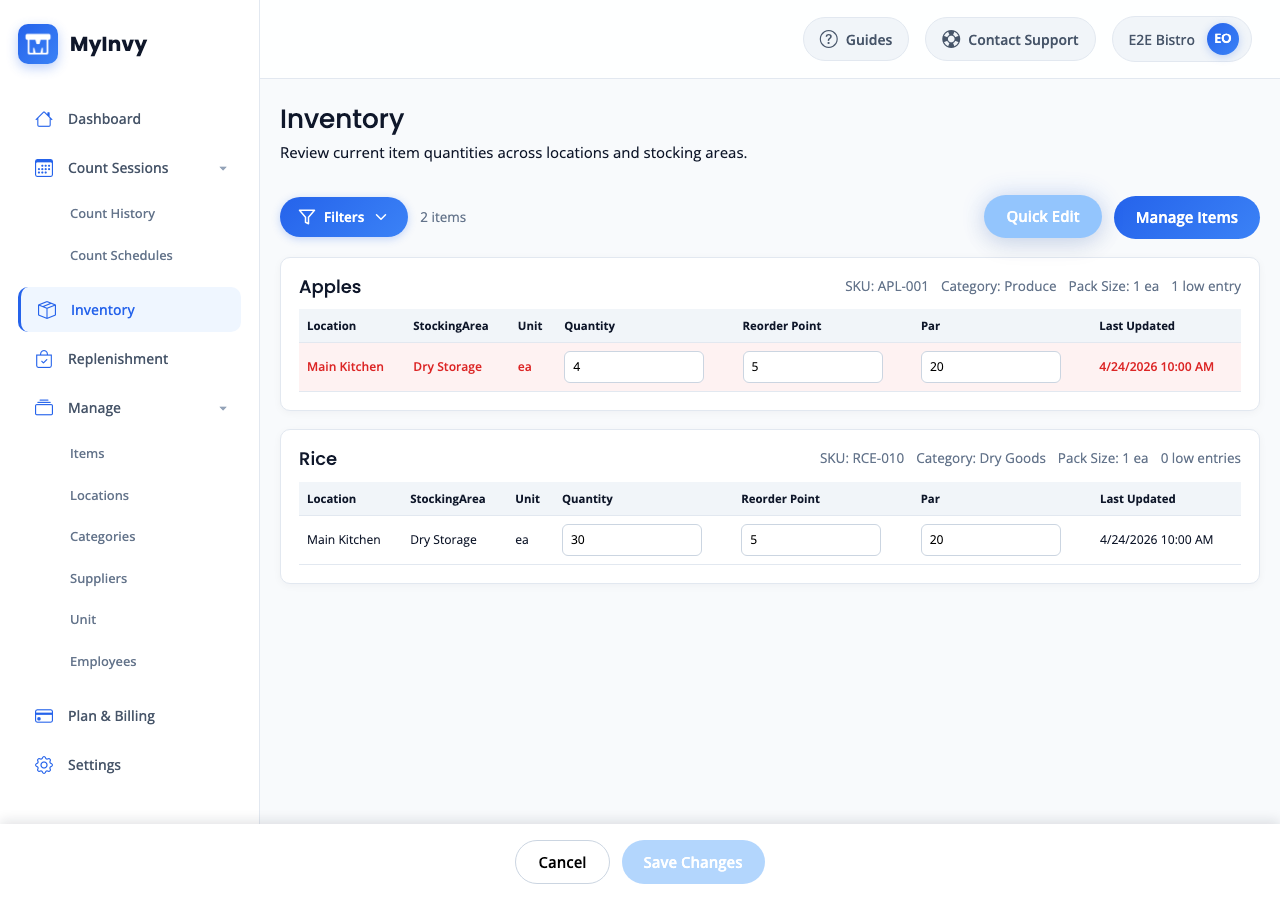
Inventory Quick Edit mode with editable quantity and threshold cells plus Save Changes footer.
Success Criteria
Inventory reflects the saved on-hand quantities, reorder points, and par levels for the selected locations.
Troubleshooting Tips
- If no items appear, confirm items are assigned to a location you can access.
- If quick-edit save returns a conflict, keep the page open, review the conflict message, and retry after confirming current values.
- If a manager only sees one location, that is expected when their account is limited to assigned locations.