
Objective
Use the replenishment planner to turn critical low stock into supplier orders or warehouse transfer drafts.
Video walkthroughs
Follow along on YouTube with narration and English captions. Each video opens in a new tab so you can keep this guide open.
Reorder Point vs. Par Level: Set Up Your Restocking Rules in MyInvy
Set reorder points and par levels, then review the resulting replenishment suggestion.
Watch on YouTubeMyInvy Quick Start: From Setup to Your First Restock
Follow a café from organization setup and item import to counting and receiving a restock.
Watch on YouTube
Prerequisites
- Your plan allows replenishment.
- Inventory levels, reorder points, and par levels are configured for the selected location.
- Warehouse locations are marked as Warehouse location when you want transfer suggestions.
Step-by-step Instructions
Open Replenishment Lists
Click Replenishment in the sidebar. Click Planner.
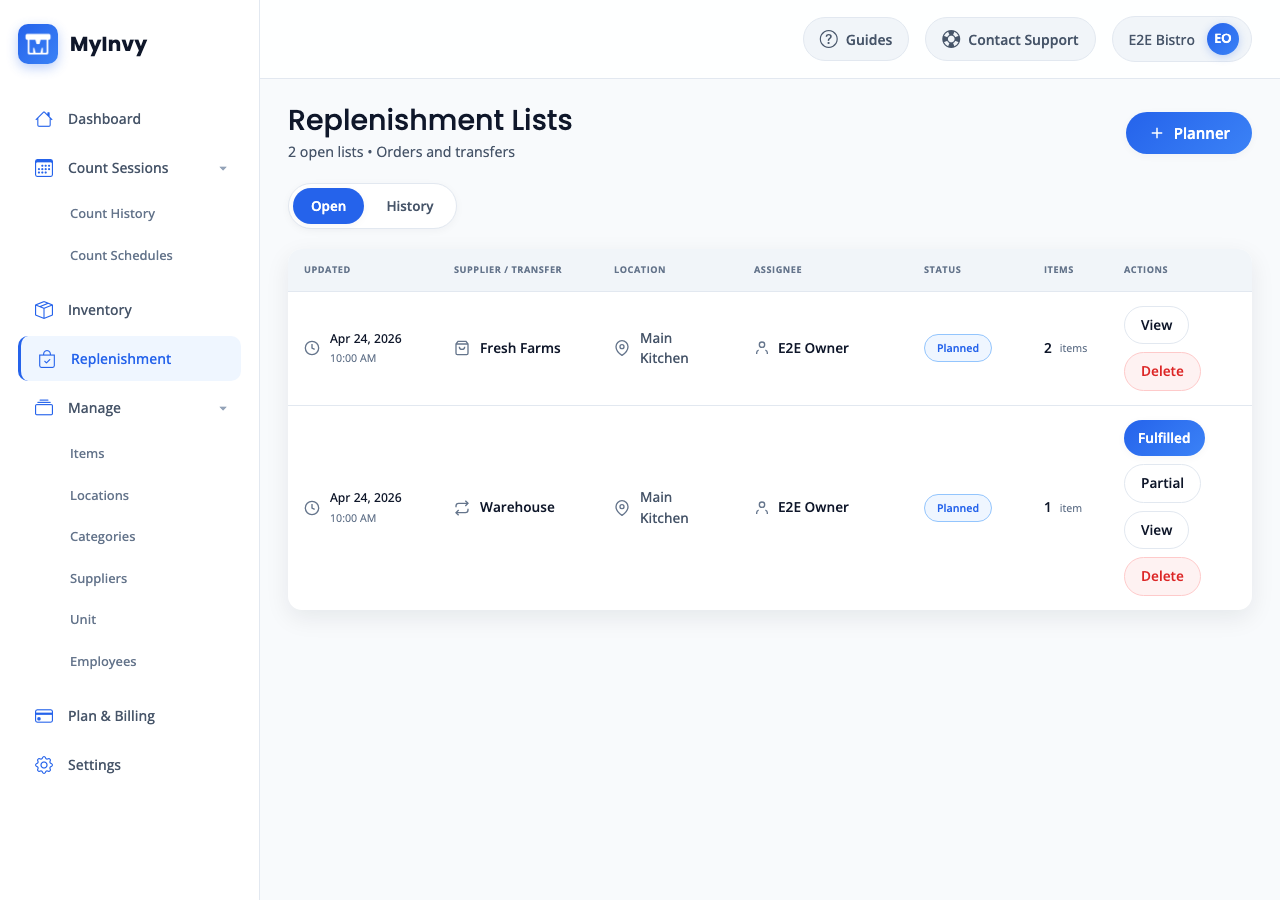
Replenishment Lists page with Open and History tabs plus Planner button. Select a destination location
In Select a location, click the location you want to restock and click Next.
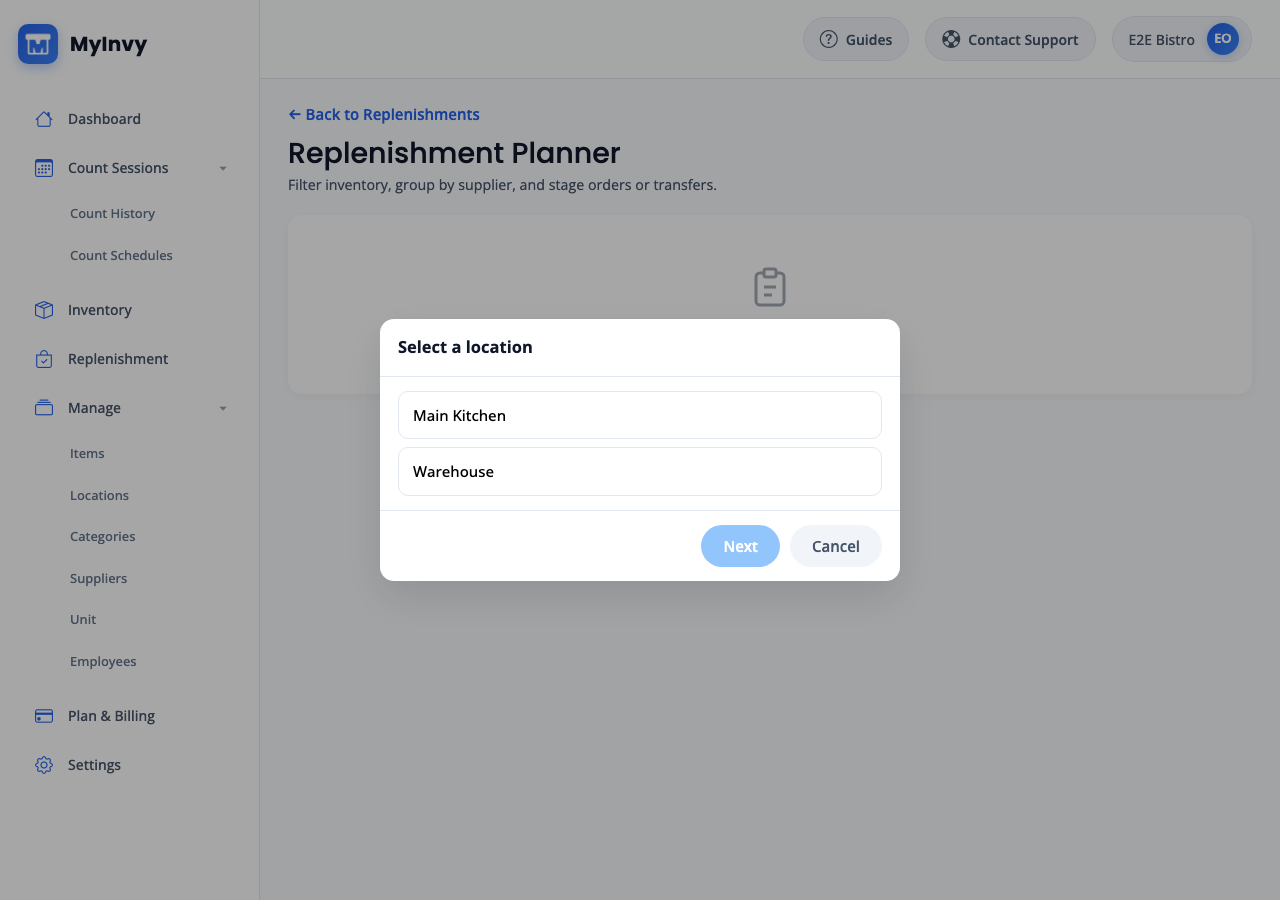
Select a location modal with location choices, Next, and Cancel. Filter planner rows
Use Search items or SKU, supplier and warehouse filters, and the Critical view to focus the planner. Click Auto-select critical to stage quantities for critical items with deficits.
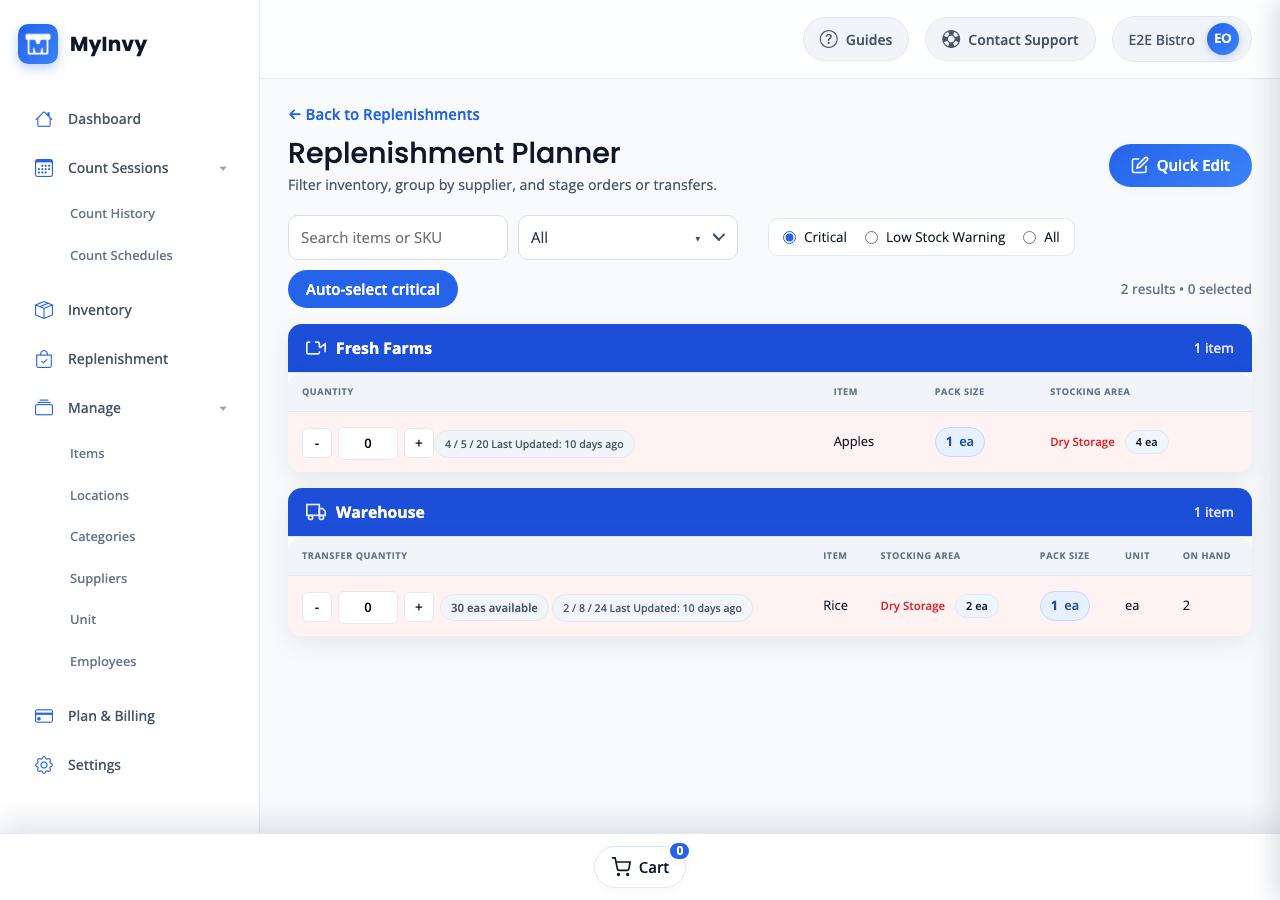
Replenishment Planner filters with Critical view and Auto-select critical. Enter supplier and transfer quantities
Use plus, minus, or quantity inputs for supplier order quantities. In warehouse sections, enter Transfer Quantity and verify available warehouse quantity before staging a transfer.
planner supplier and warehouse rows with Quantity and Transfer Quantity controls. Review and save the cart
Click Cart. Review supplier drafts and Transfer from warehouse drafts. Remove incorrect rows or adjust quantities, then click Save Drafts.
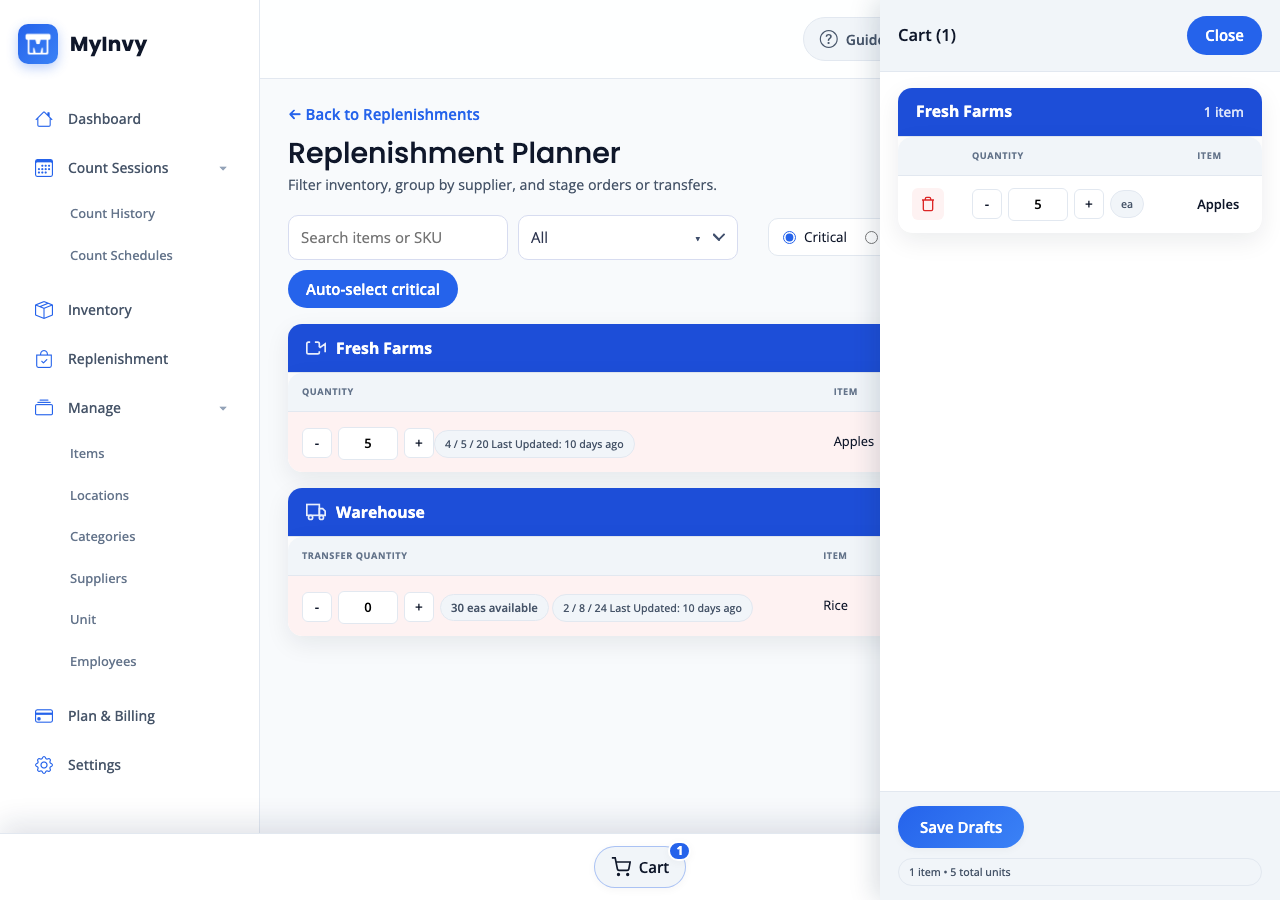
Cart drawer summarizing supplier drafts and warehouse transfer drafts with Save Drafts.
Success Criteria
Planned replenishment and transfer lists appear under Replenishment Lists for assignment, editing, fulfillment, or deletion.
Troubleshooting Tips
- If Replenishment is unavailable, upgrade to a plan that allows replenishment.
- If no items are suggested, review reorder points, par levels, and current inventory levels.
- If a warehouse transfer is unavailable, confirm a different active location is marked as a warehouse and has on-hand quantity.