
Objective
Review completed count sessions, inspect session detail, and use the latest read-only snapshot for recent quantities.
Prerequisites
- At least one count session has been started or completed.
- You have access to the counted location.
Step-by-step Instructions
Open Count History
Navigate to Count Sessions > Count History.
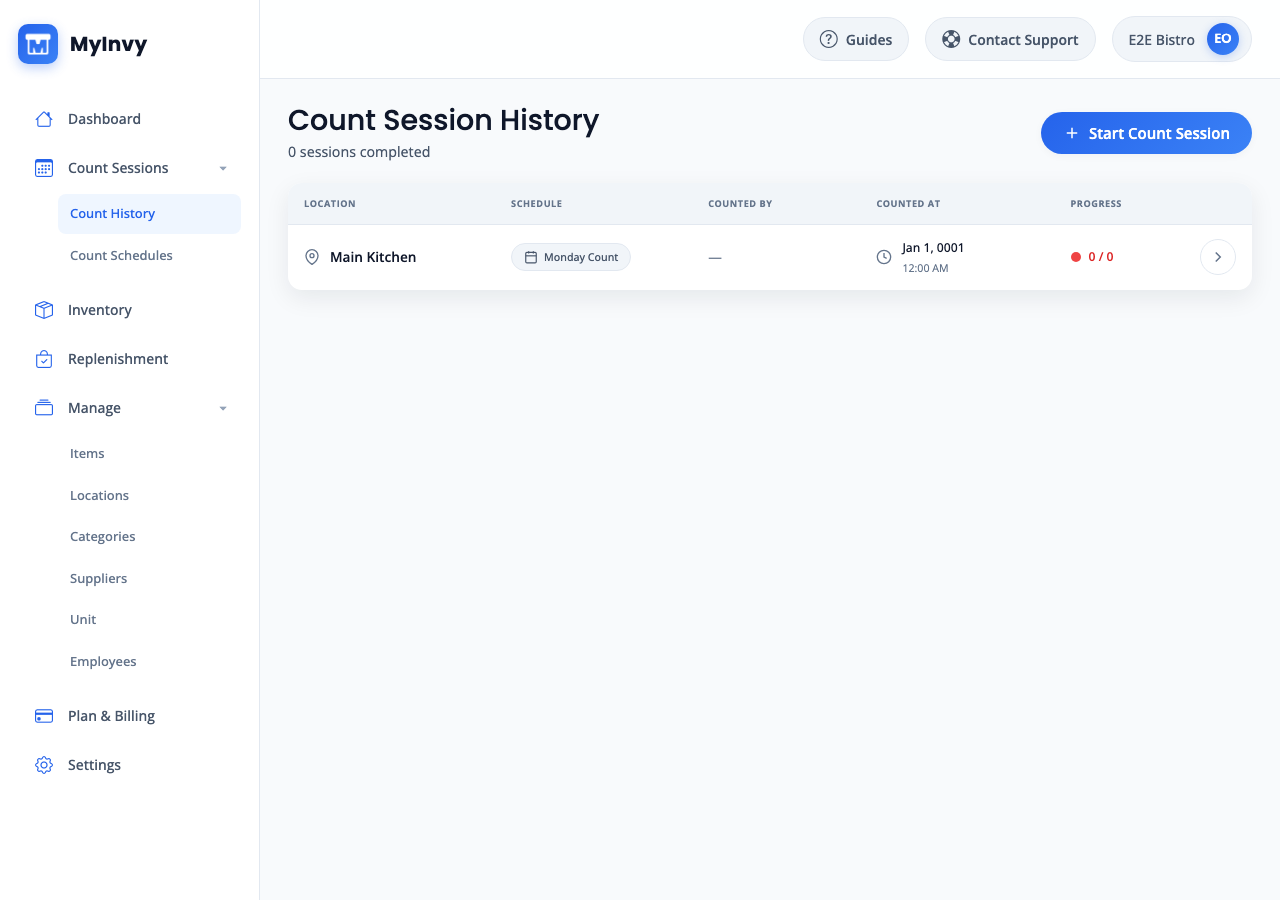
Count History list with location, schedule, status, and detail navigation. Find the session
Scan Date, Location, Schedule, counted-by user, and status information to find the session you need.
Count History table highlighting a Main Kitchen session row. Open the session detail
Click the session row to open Count Session Details. Review counted items, stocking areas, and recorded quantities.
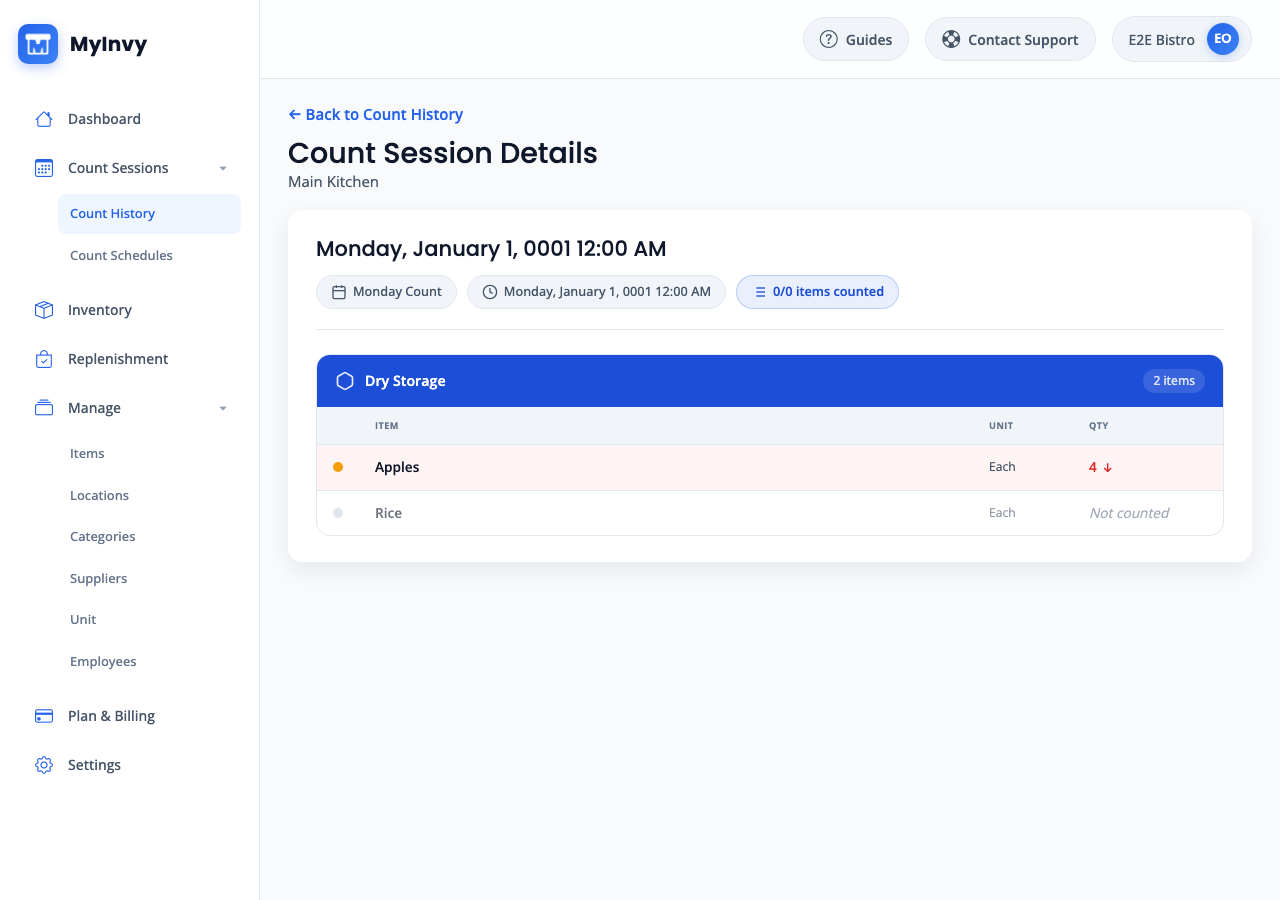
Count Session Details with counted item rows and stocking-area quantities. Open the latest snapshot
Open the latest inventory count view when you need a simple read-only snapshot of the most recent counted quantities for a location.
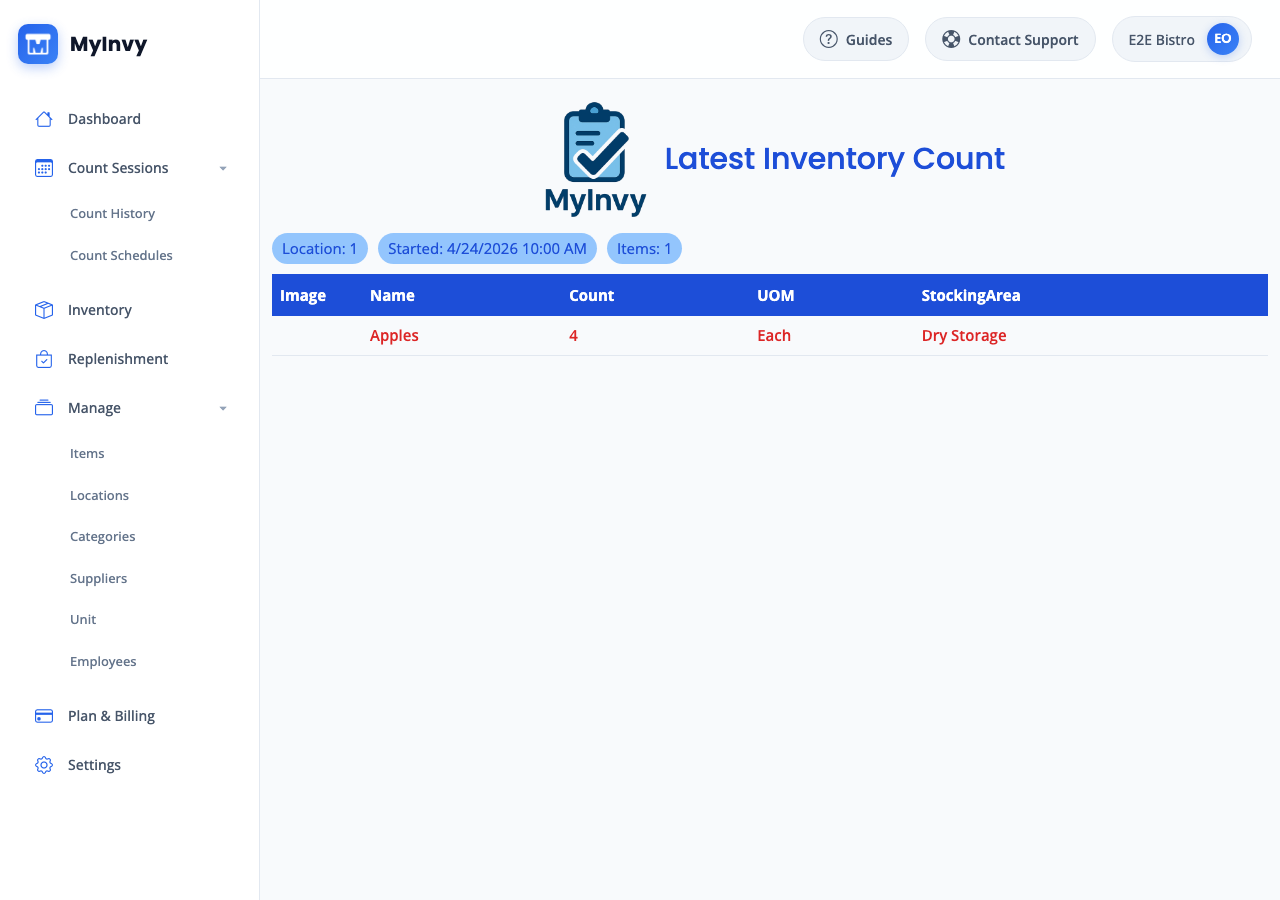
Latest Inventory Count read-only snapshot for item quantities and reorder context.
Success Criteria
You can confirm what was counted, when it was counted, who counted it, and which item quantities were captured.
Troubleshooting Tips
- If history is empty, complete a count session first or check whether you have access to the counted location.
- If a detail page says the session is not found, return to Count History, refresh, and open the row again.