
Objective
Maintain the reference data used to organize items, assign suppliers, and define how quantities are counted.
Video walkthroughs
Follow along on YouTube with narration and English captions. Each video opens in a new tab so you can keep this guide open.
How to Organize Items with Categories and Suppliers in MyInvy
Group items into categories and link suppliers for filtering and replenishment planning.
Watch on YouTubeUnits and Pack Sizes: Count Inventory Consistently in MyInvy
Configure case sizes and location units, then count and verify the saved quantities.
Watch on YouTube
Prerequisites
- You are signed in as an owner.
- Create locations and items first when you want to assign existing items to categories or suppliers.
Step-by-step Instructions
Create or edit a category
Navigate to Manage > Categories. Click New category, input Name, and click Create category. Click Edit on an existing category to rename it or manage assigned items.
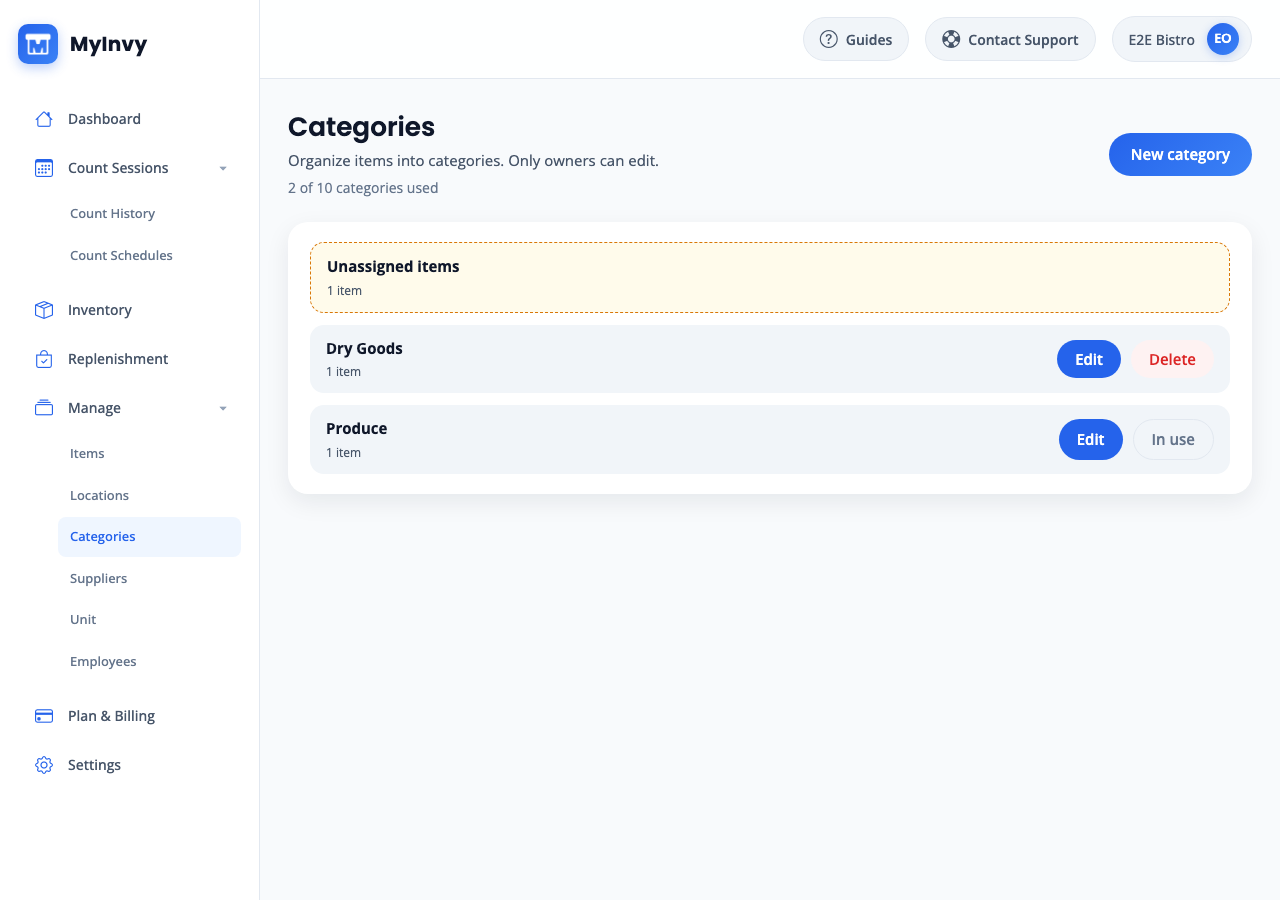
Categories page with New category, item counts, Edit, and Delete or In use actions. Assign items to a category
On Edit Category, click Assign items. Use Filter by name, SKU, or category, optionally toggle Show Unassigned Items Only, select rows, and click Assign items. Select assigned rows and click Remove when needed.
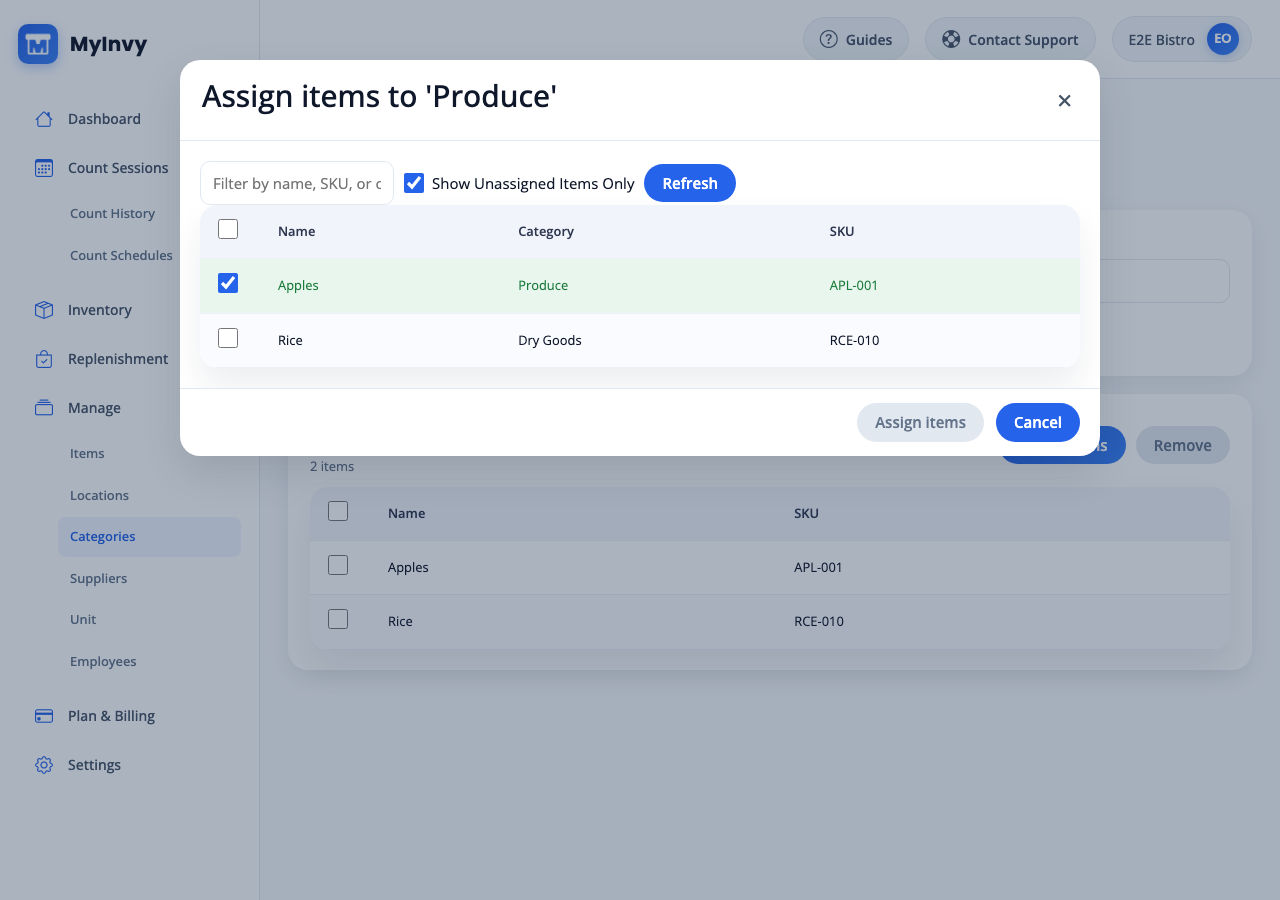
Assign items modal with search, Show Unassigned Items Only, Refresh, and Assign items. Create or edit a supplier
Navigate to Manage > Suppliers. Click New supplier, input Name, and click Create supplier. Click Edit to rename a supplier or assign items.
Suppliers page with New supplier, Edit, Delete, and In use states. Assign items to a supplier
On Edit Supplier, click Assign items. Use Filter by name, SKU, or supplier, choose matching rows, and click Assign items. Use Remove to unassign selected items.
supplier item assignment modal and assigned-items table. Create or edit a unit
Navigate to Manage > Unit. Click New unit, input Name, optional Code, optional Base unit code, and Conversion to base, then click Create unit. Use Edit and Save changes for existing units.
Units of measure table with New unit, Edit, Delete, and In use labels.
Success Criteria
Categories, suppliers, and units appear in item forms, filters, import templates, and assignment workflows.
Troubleshooting Tips
- If Delete is disabled and shows In use, remove item assignments before deleting the category, supplier, or unit.
- If a category, supplier, or unit page says only owners can manage it, sign in as an owner.
- If a unit conversion is wrong, edit the unit before using it in new item location configurations.