
Objective
Define recurring item groups for counts by location, day, stocking area, supplier, or existing schedule coverage.
Prerequisites
- You are signed in as an owner or manager.
- At least one location exists.
- Items are assigned to the location you want to schedule.
Step-by-step Instructions
Open Count Schedules
Navigate to Count Sessions > Count Schedules. Review each location card, item count, schedule count, and any items without schedule alert.
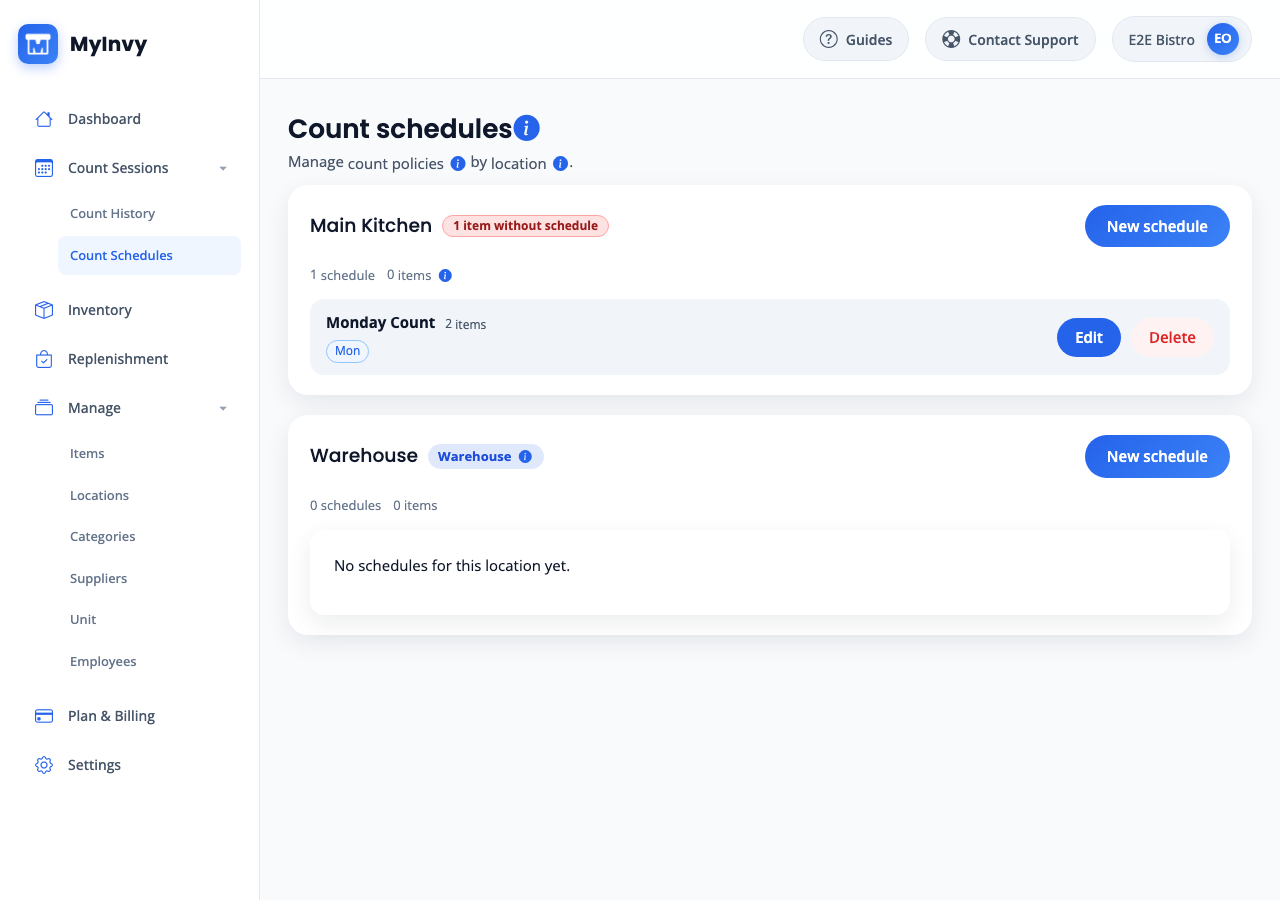
Count schedules page grouped by location with New schedule, Edit, Delete, and unscheduled-item alert. Create a new schedule
Click New schedule for the location. On New count schedule, input Schedule name and select one or more Days.
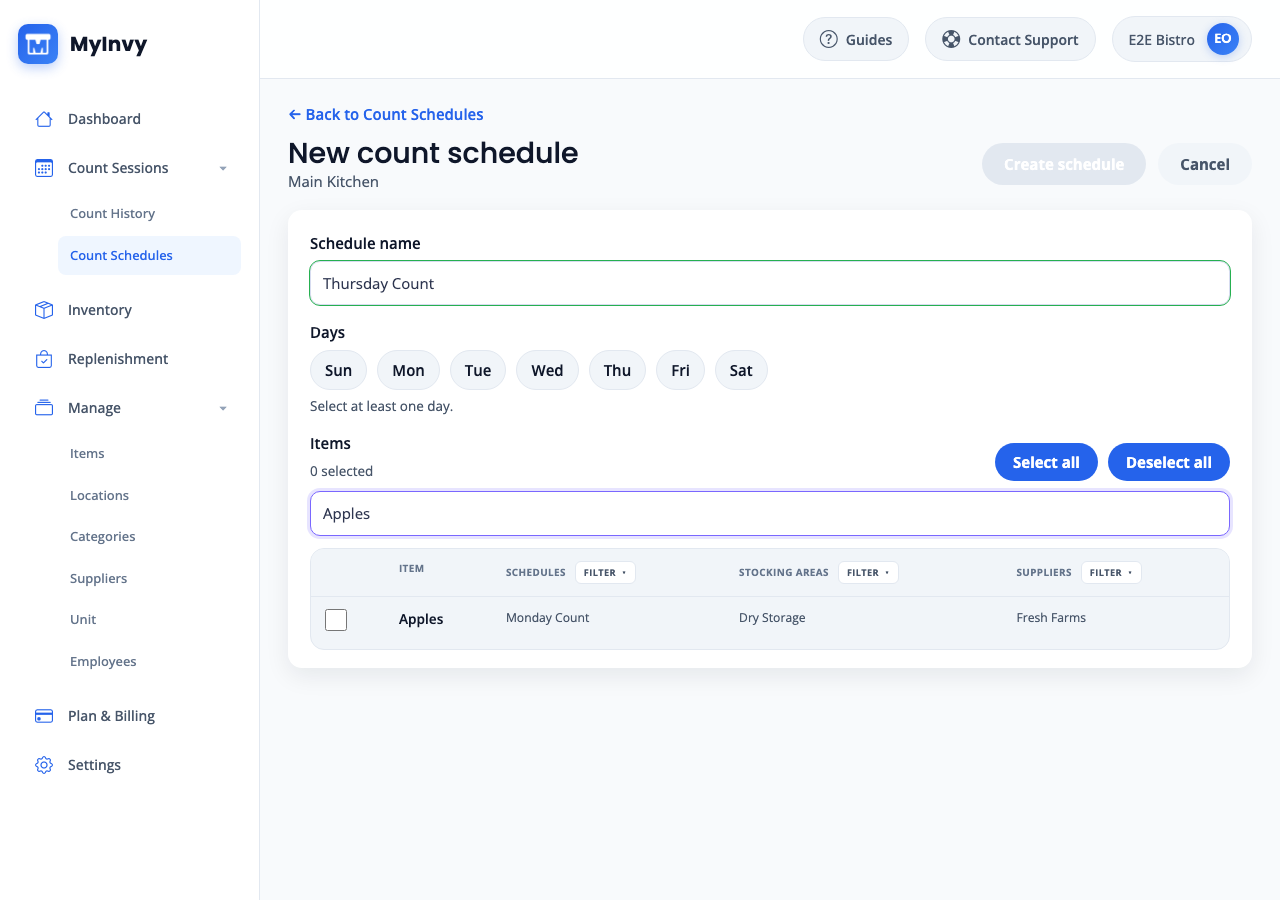
New count schedule editor with Schedule name, Days, Items, and Create schedule. Select schedule items
Use Search items to narrow the table. Select individual item checkboxes, click Select all, or click Deselect all. Use the Schedules, Stocking areas, and Suppliers Filter menus when the item list is long.
count schedule item table with search and filter menus for schedules, stocking areas, and suppliers. Save the schedule
Click Create schedule. For an existing schedule, click Edit, update name, days, or items, and click Save changes.
Save controls for Create schedule or Save changes in the schedule editor. Delete an obsolete schedule
On Count Schedules, click Delete for a schedule, then click Delete again in the confirmation state.
schedule row in delete-confirmation state with Delete and Cancel actions.
Success Criteria
The schedule appears under its location and can be selected when starting a count session for that location.
Troubleshooting Tips
- If Create schedule or Save changes is disabled, select at least one day.
- If no items are available, assign items to the location first.
- If you do not have access to view count schedules, ask an owner to confirm your role and location access.