
Objective
Start or resume a count session, enter quantities, handle threshold-only items, queue offline progress, and complete the session.
Video walkthroughs
Follow along on YouTube with narration and English captions. Each video opens in a new tab so you can keep this guide open.
How to Run Your First Inventory Count in MyInvy
Count on iPhone, review and correct entries, transmit results, and check acceptance.
Watch on YouTubeHow to Count Offline and Sync Your Results in MyInvy
Keep counting during a connection interruption, reconnect, and verify the saved results.
Watch on YouTube
Prerequisites
- You are signed in with access to a location.
- The location has countable items assigned.
- Optional count schedules may already exist for owners or managers to choose.
Step-by-step Instructions
Open the count workflow
Click Count Sessions > Count or click Start Count Session from the dashboard.
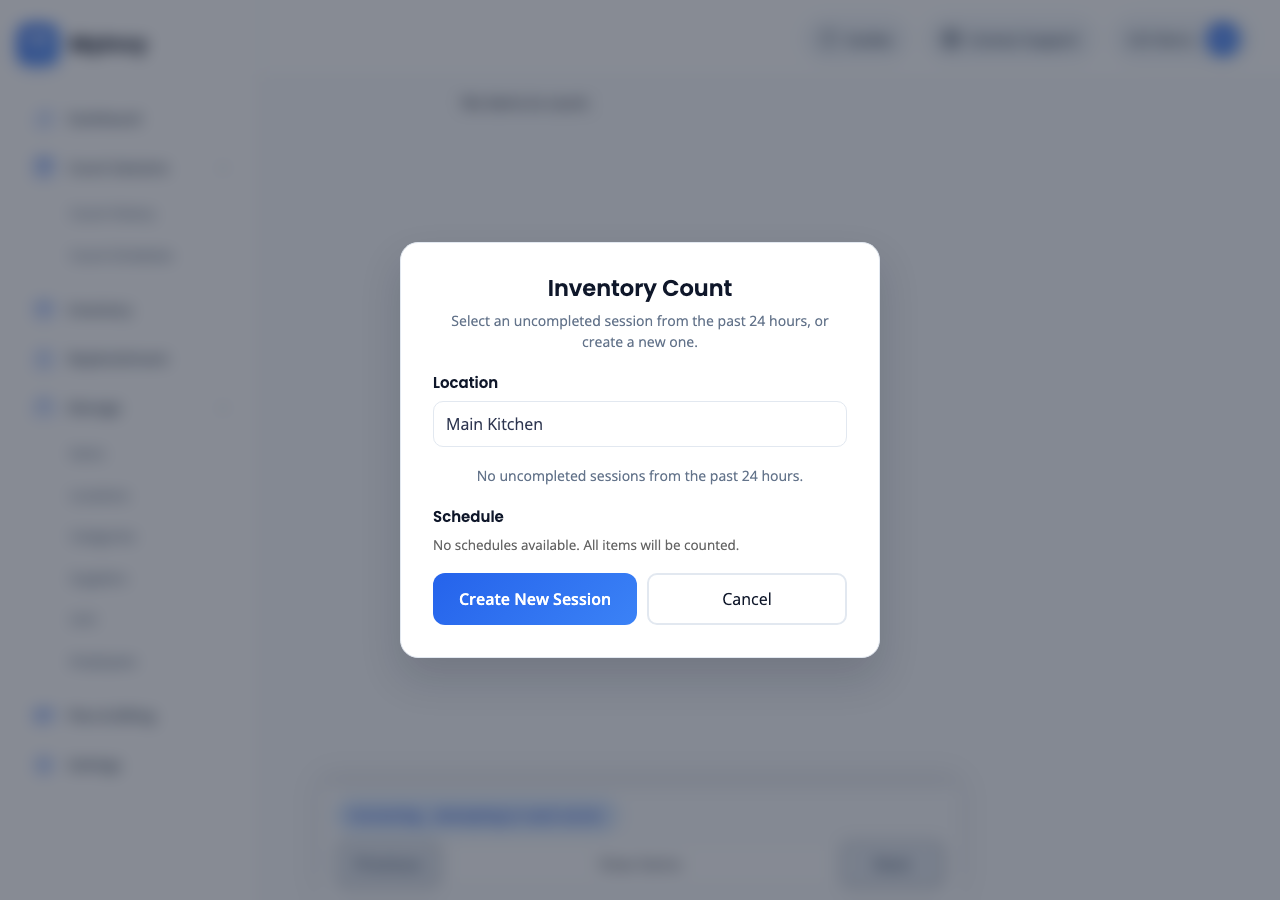
Inventory Count overlay asking for Location and showing create or resume session actions. Choose location and schedule
Select Location. Select a schedule when one is available, or continue without a schedule if the count should include all eligible items. Review recent sessions before creating a new one.
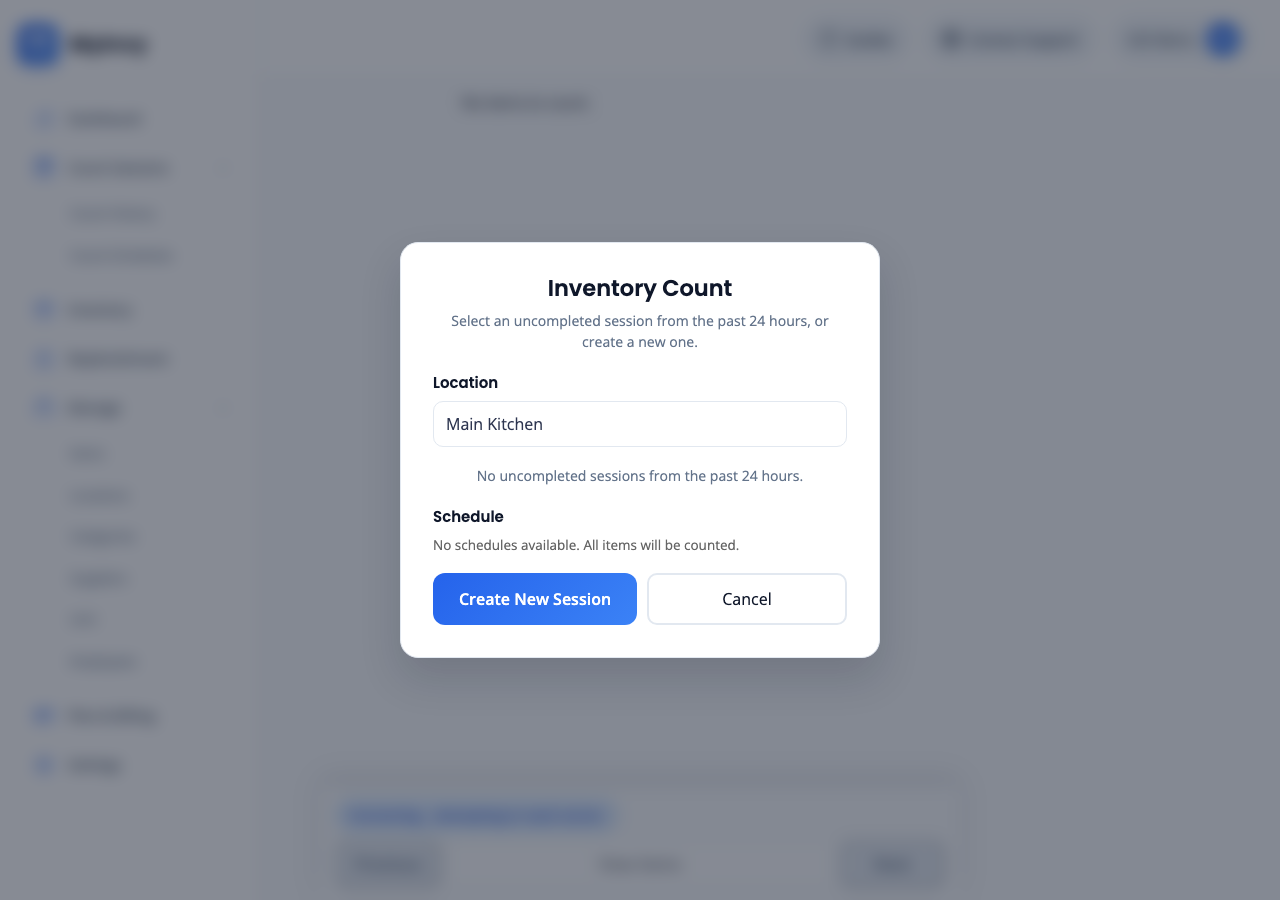
count start overlay with Location, Schedule, recent sessions, Create New Session, and Cancel. Create or resume the session
Click Create New Session or select an existing session. Use View Items to review all items in the session.
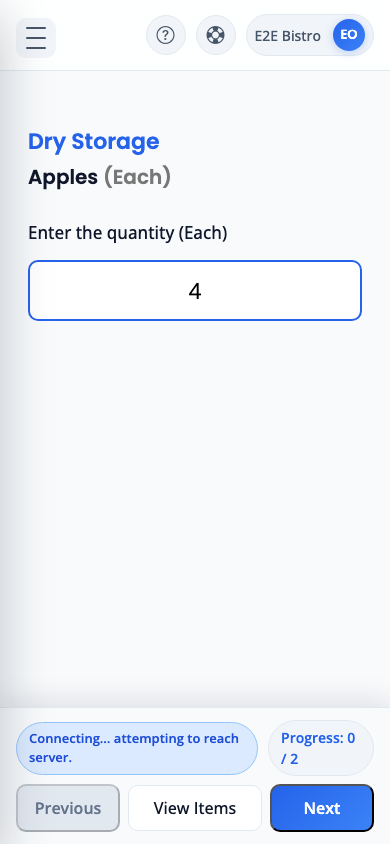
mobile count screen with item name, quantity input, keypad, Previous, View Items, and Next. Enter each count
For Specific items, input the counted quantity and click Next or Update. For ThresholdOnly items, click Yes when the item is above threshold or No to enter the actual quantity.
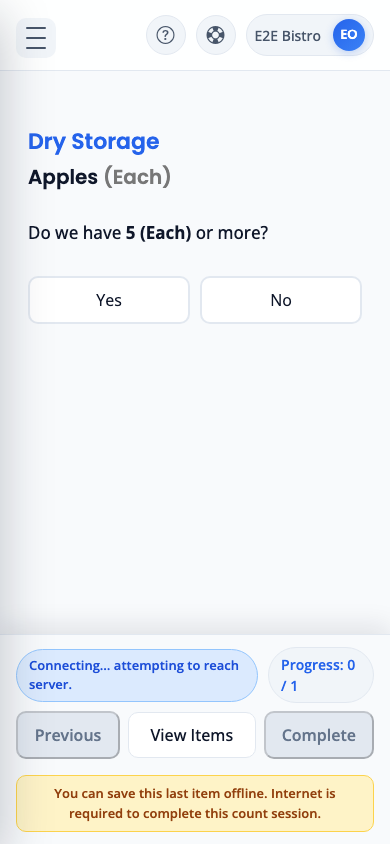
threshold-only count item with Yes and No choices. Complete the session
Use Previous and Next to move through items. On the final item, click Complete. Keep the session open if a final save fails and retry after the message clears.
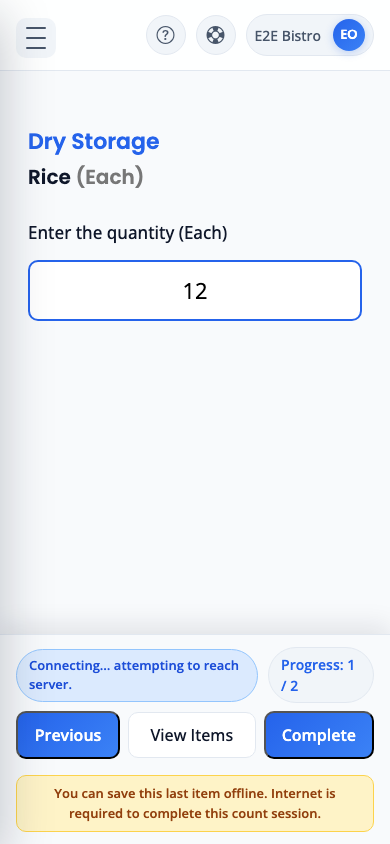
final count item where Next changes to Complete.
Success Criteria
MyInvy confirms the count session completed, redirects to Count History, and updates inventory from the counted quantities.
Troubleshooting Tips
- If you go offline, MyInvy queues progress locally and replays it when the connection returns.
- If Complete fails after a line-save error, stay on the count screen and retry Complete.
- If no locations are assigned, ask an owner or manager to navigate to Manage > Employees, open Manage teammate, and update your location assignment.