
Objective
Join an existing MyInvy organization from an invitation link and resolve account mismatch prompts safely.
Prerequisites
- You received a current invitation link.
- You can sign in with the invited email address or choose to accept with your current signed-in account.
Step-by-step Instructions
Open the invitation link
Navigate to the invitation link. If MyInvy shows Sign in to continue, click it and complete sign-in.
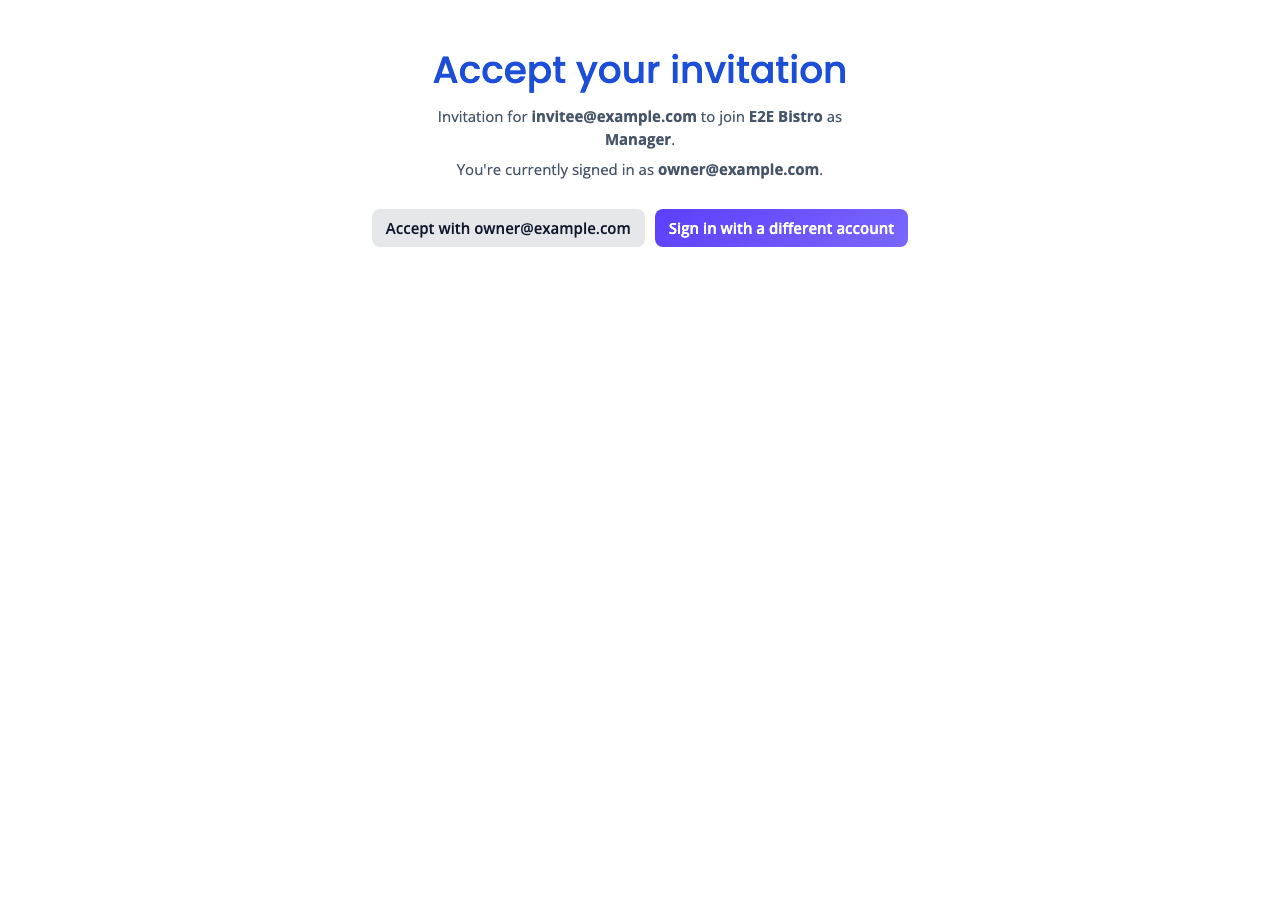
Accept your invitation screen showing invited email, organization, and role. Check the signed-in account
If MyInvy says you are currently signed in as a different email, click Accept with the current email only when that is intentional. Otherwise click Sign in with a different account.
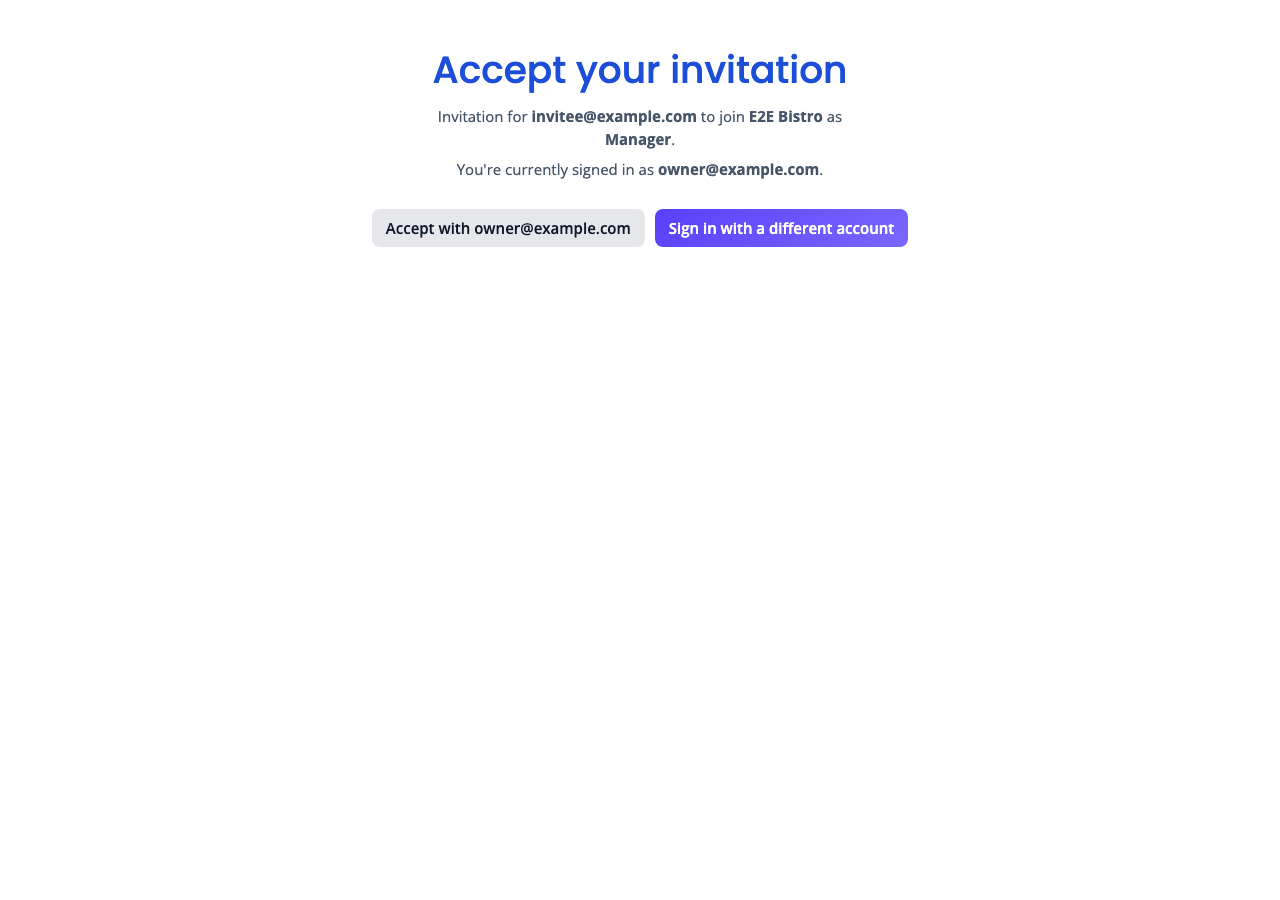
account mismatch prompt with Accept with current email and Sign in with a different account. Accept the invitation
Click Accept invitation. Wait for the You are all set confirmation, then click Go to dashboard.
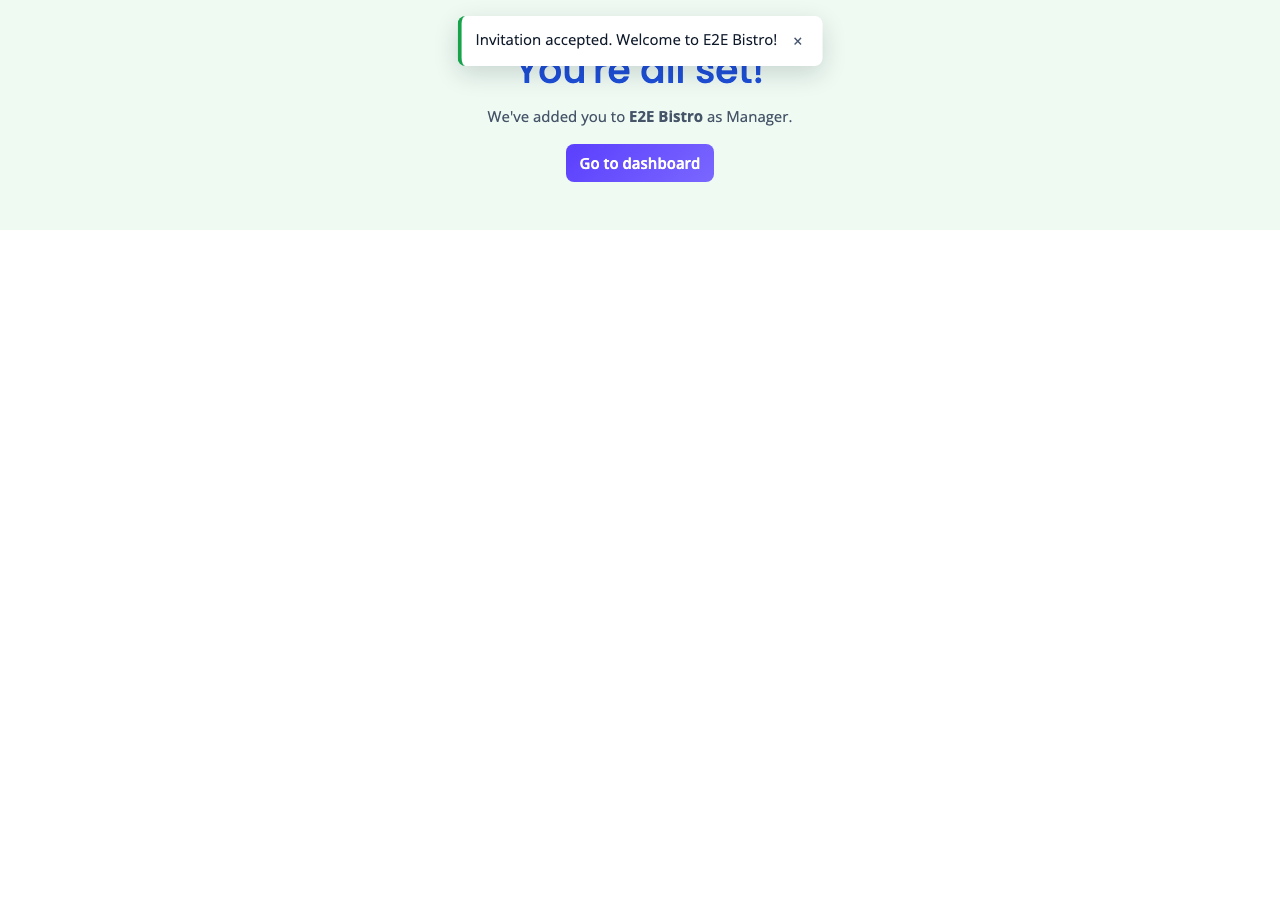
invitation success state with organization, role, and Go to dashboard.
Success Criteria
The dashboard opens with the role and location access assigned by the organization.
Troubleshooting Tips
- If MyInvy cannot find the invitation, open the newest invitation email and confirm the link has not been revoked.
- If the invitation expired, ask an owner or manager to send a new invitation.
- If you accepted with the wrong account, ask an owner to remove that user and resend the invitation.