
Objective
Find role-specific dashboard tools, expand sidebar groups, open guides or support, and sign out from the app shell.
Video walkthroughs
Follow along on YouTube with narration and English captions. Each video opens in a new tab so you can keep this guide open.
Meet MyInvy: Track, Count & Replenish Your Inventory
See how MyInvy helps small businesses track, count, and replenish inventory.
Watch on YouTubeMyInvy Quick Start: From Setup to Your First Restock
Follow a café from organization setup and item import to counting and receiving a restock.
Watch on YouTube
Prerequisites
- You are signed in.
- Your organization setup or invitation acceptance is complete.
Step-by-step Instructions
Review your role dashboard
Navigate to Dashboard. Owners see Owner Tools, managers see Manager Tools, and employees see Employee Tools. Click a tile such as Manage Items, Start Count Session, or Support to open that workflow.
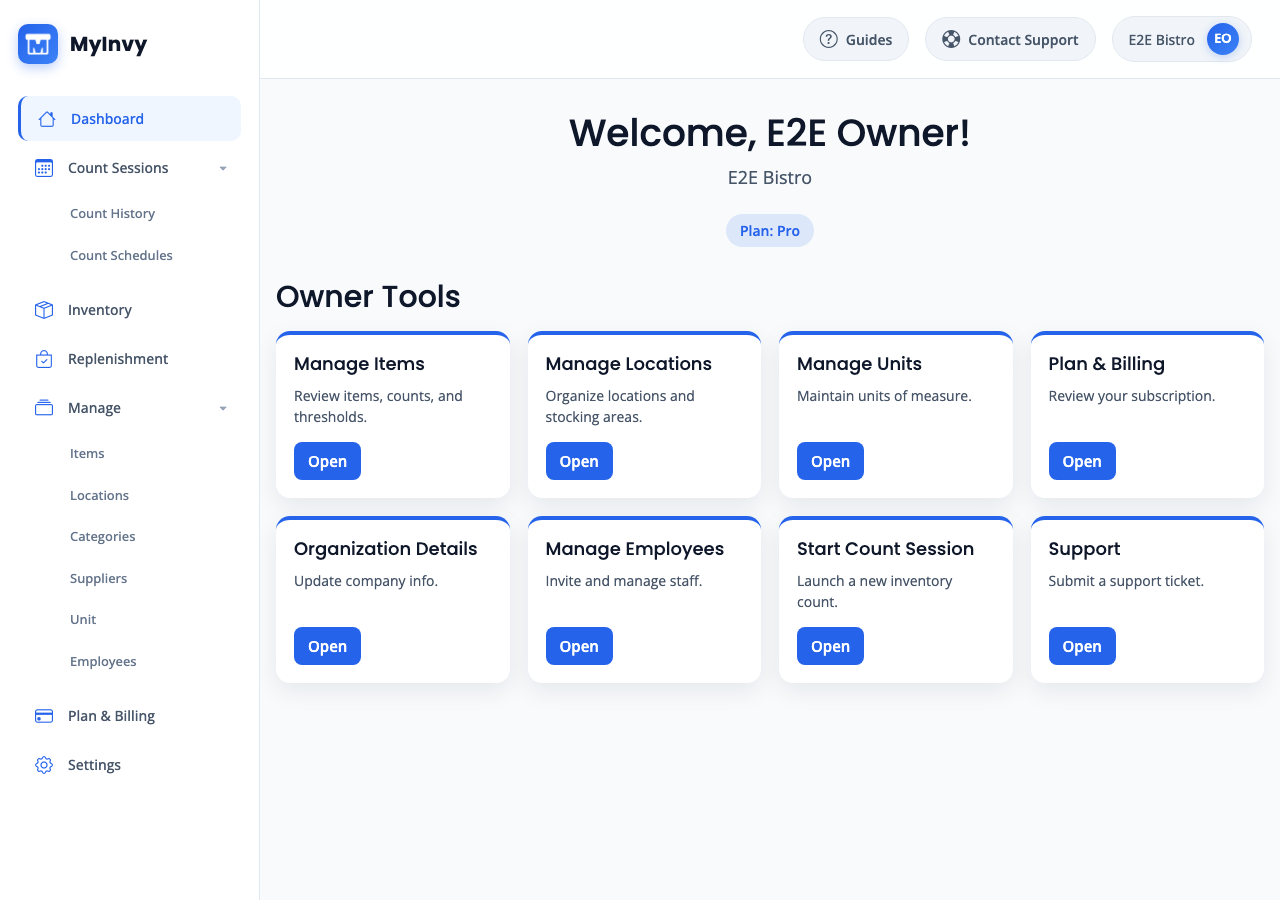
Dashboard showing role-specific tiles and assigned-location context. Expand sidebar groups
Click Count Sessions to reveal Count History and Count Schedules. Click Manage to reveal Items, Locations, Categories, Suppliers, Unit, and Employees when your role and plan allow them.
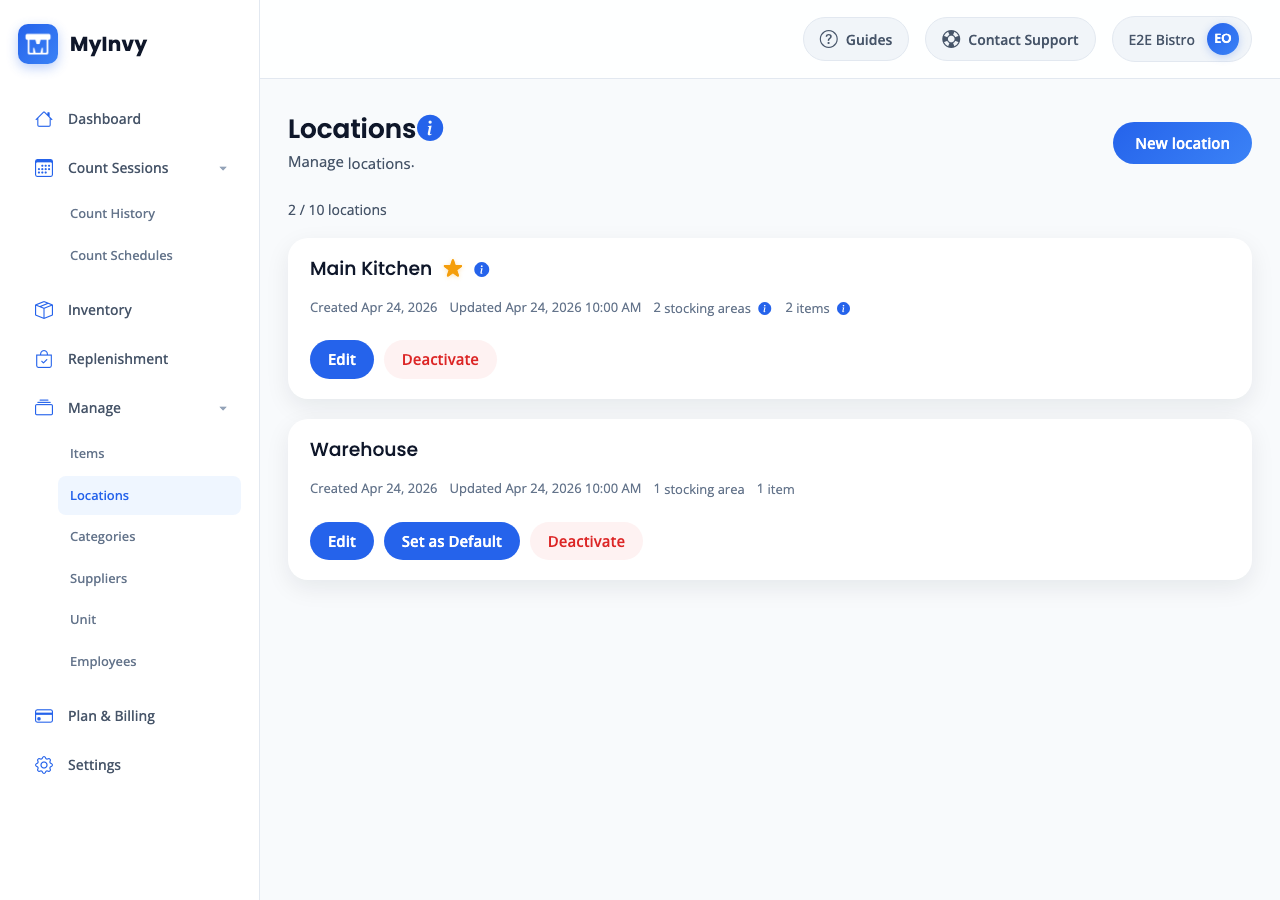
app sidebar with expanded Count Sessions and Manage groups. Open workflow help
Click Guides in the top bar to open the guide center in a new tab. Use Contact Support if the guide does not answer your question.
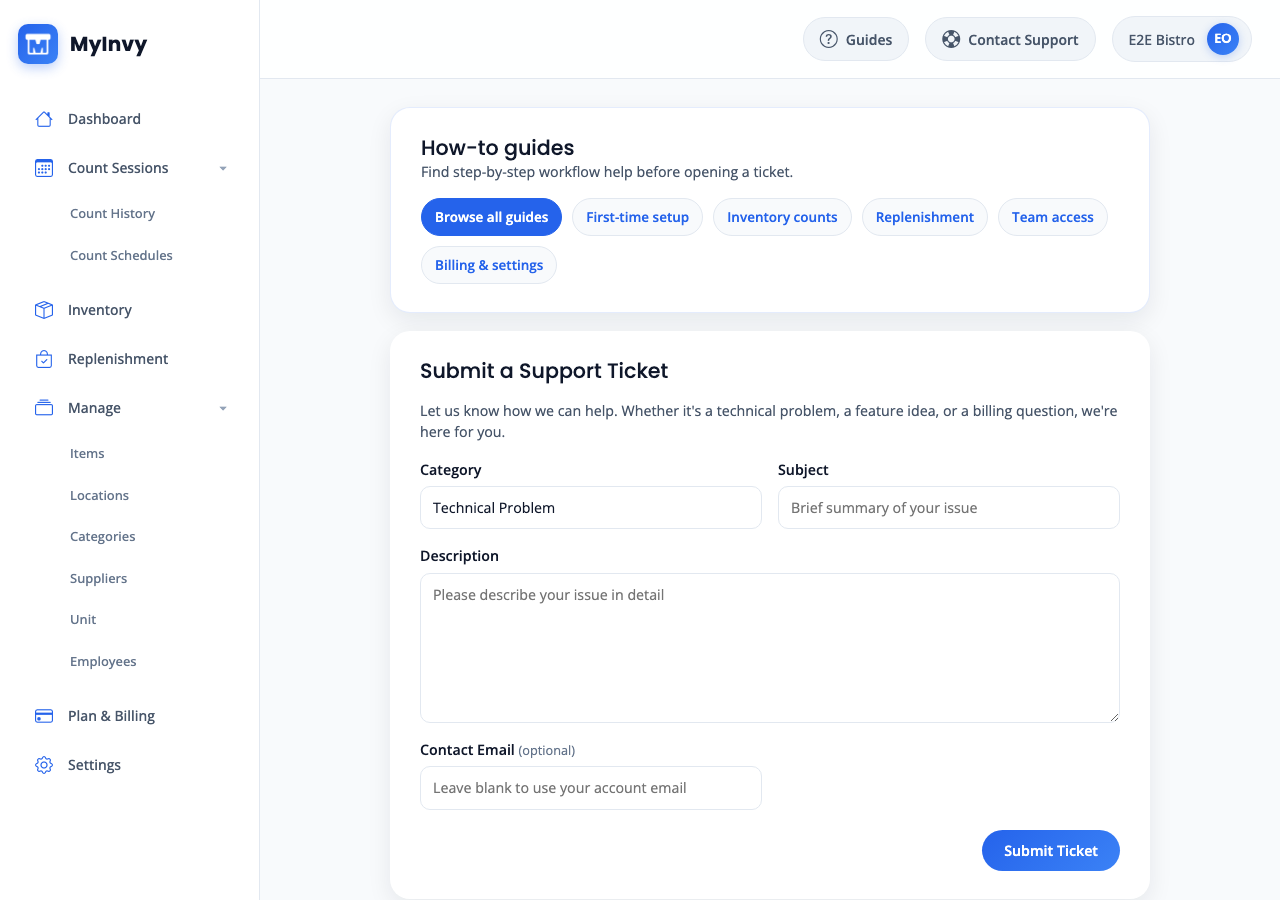
top-bar Guides and Contact Support actions with common guide topic links. Sign out
Click the user chip in the top bar, then click Sign out. MyInvy returns you to the Sign in screen.
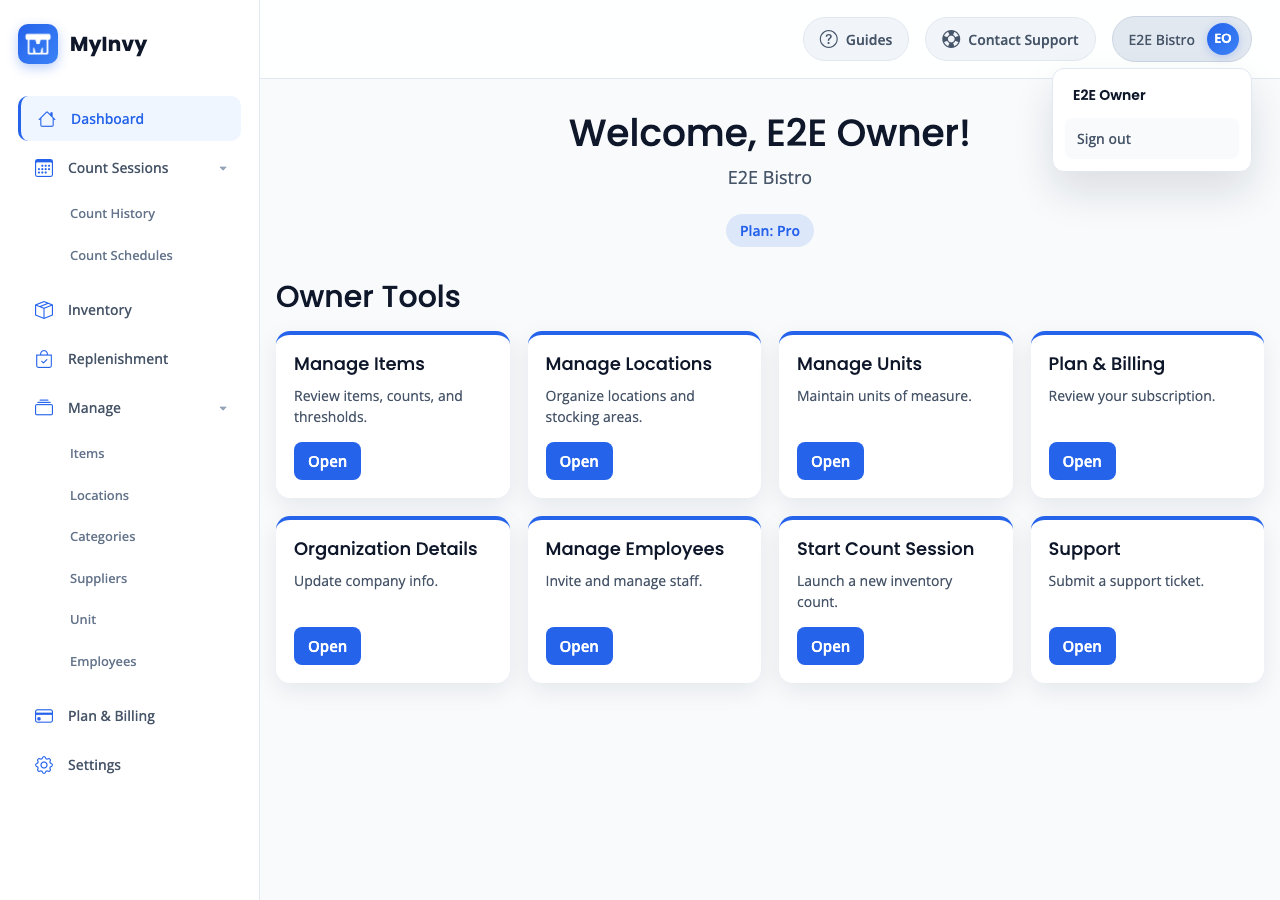
user menu opened from the organization chip with Sign out action.
Success Criteria
You can reach the workflow that matches your role, open help, and end the session from the user menu.
Troubleshooting Tips
- If a menu item is missing, your role, assigned locations, or plan may not allow that workflow.
- If Contact Support opens but you cannot submit a ticket, confirm you are signed in and complete required fields.
- If the app shows Loading for a long time after sign-in, refresh the page and sign in again if prompted.