
Objective
Review plan status, refresh billing, open the billing portal, select available plans, and handle App Store managed subscriptions.
Prerequisites
- You are signed in as an owner.
- Your organization setup is complete.
Step-by-step Instructions
Open Plan & Billing
Click Plan & Billing in the sidebar. Use Refresh billing status when you need the latest subscription state.
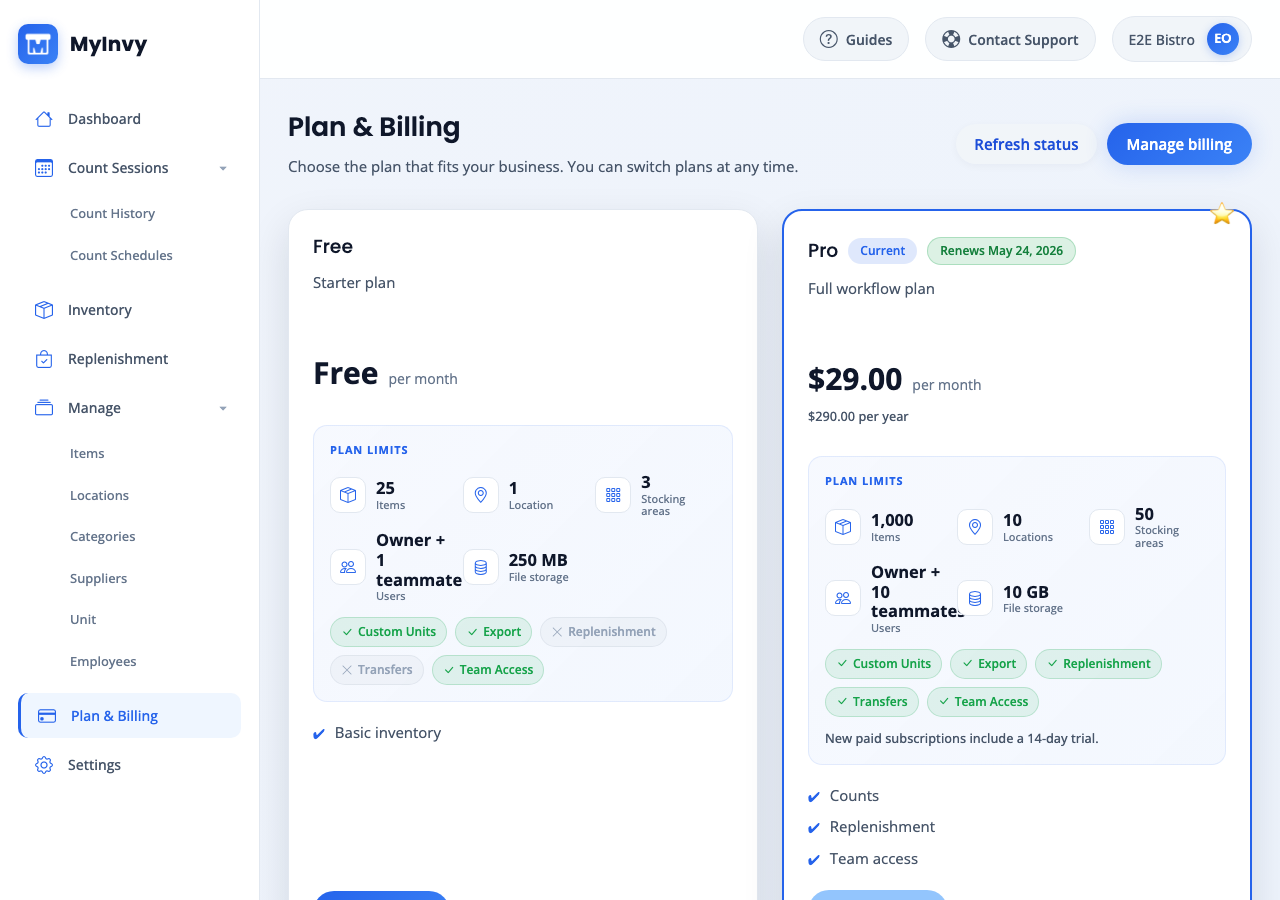
Plan & Billing header with Refresh billing status, Manage billing, status, and plan grid. Review plan usage
Check current limits, item usage, user or seat usage, and any over-capacity warning before changing plans.
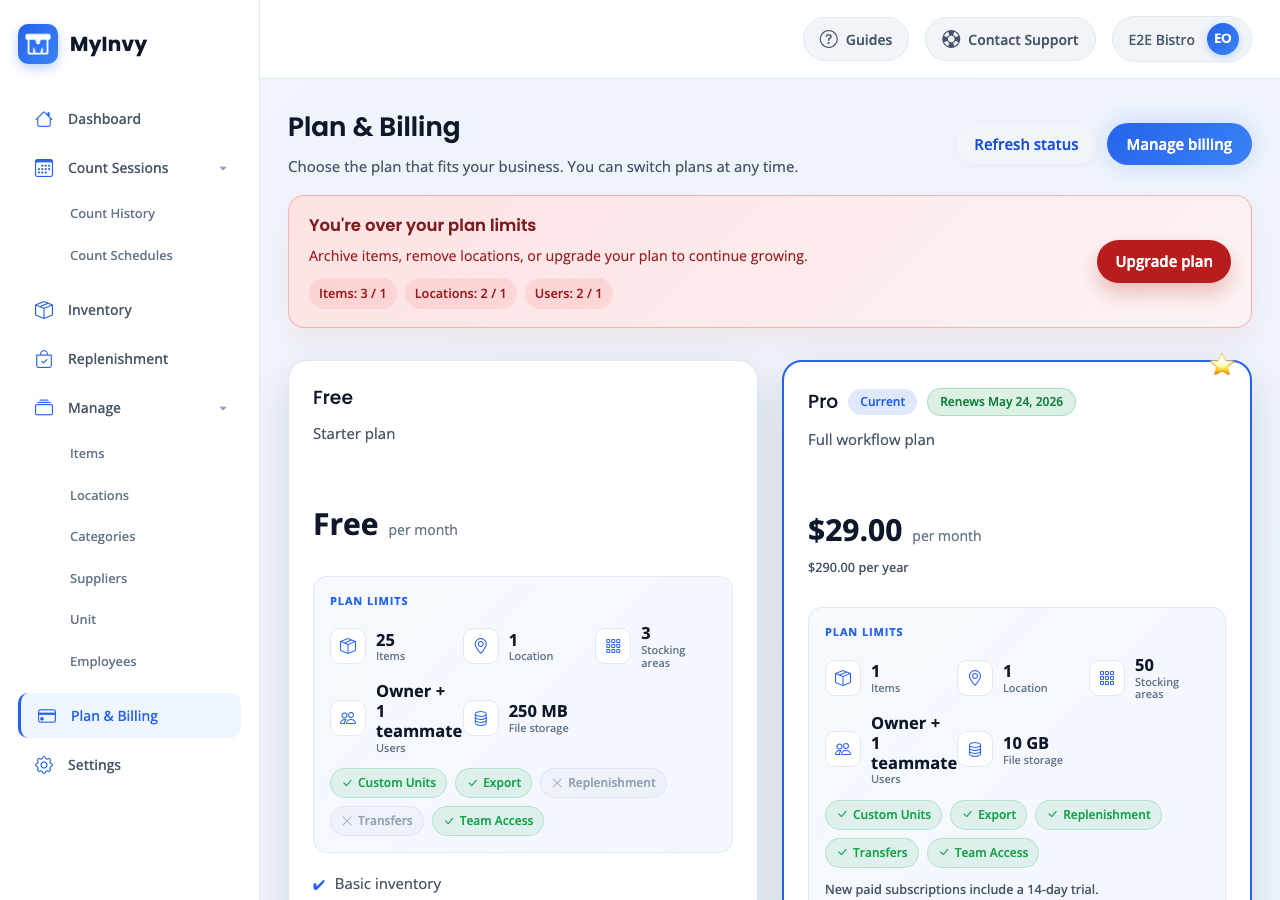
plan usage and over-capacity banner with Upgrade plan action. Open billing portal
Click Manage billing when the subscription is web-managed and you need invoices, payment methods, cancellation, or portal-based changes.
web-managed subscription state with Manage billing button. Choose a plan
Find the plan card you want and click Choose plan. Complete Stripe checkout when redirected.
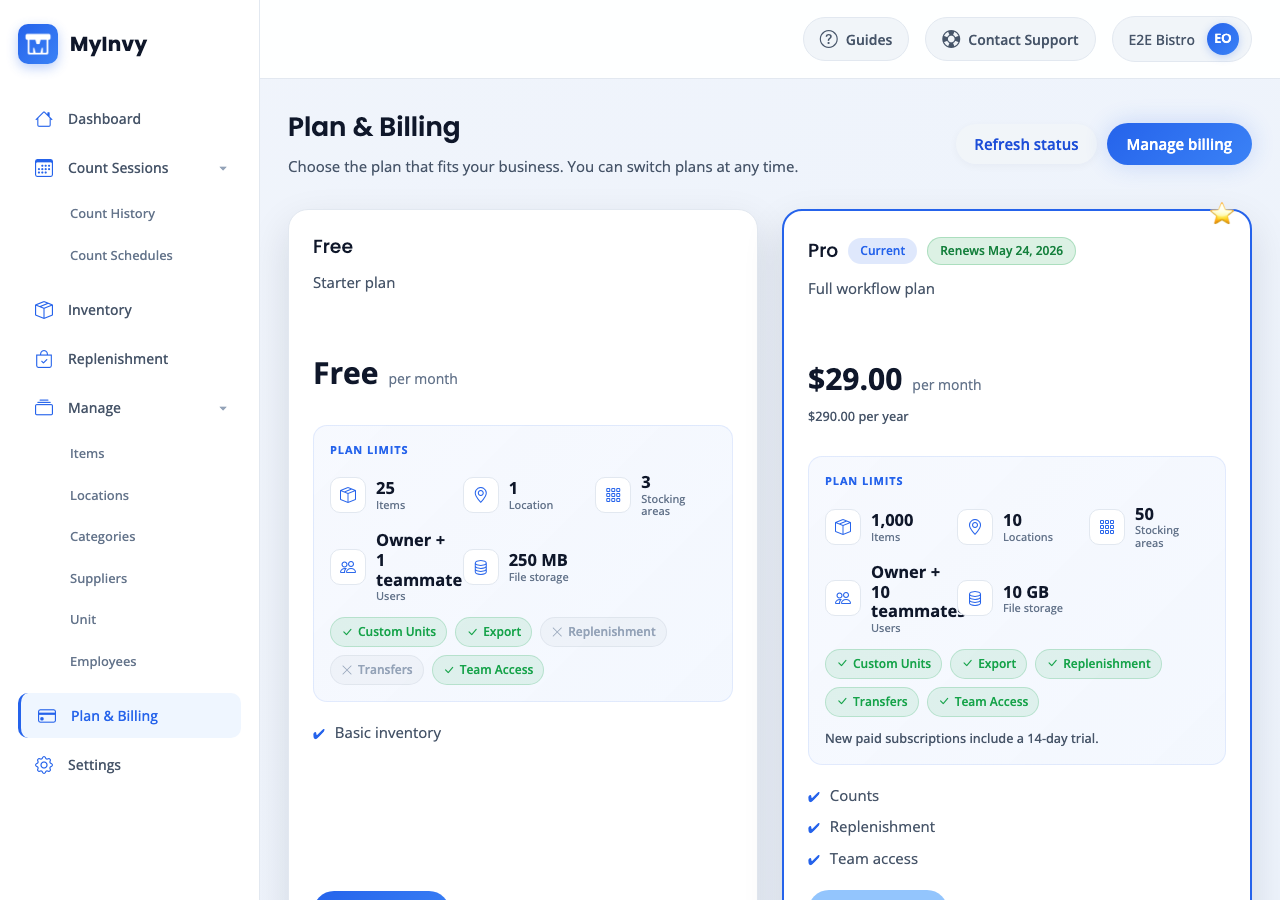
plan cards with Current, recommended plan, limits, prices, and Choose plan actions. Handle App Store managed billing
If the page says Managed in App Store, do not use web checkout. Open the MyInvy iOS app and use Settings > Subscription to upgrade, downgrade, or cancel.
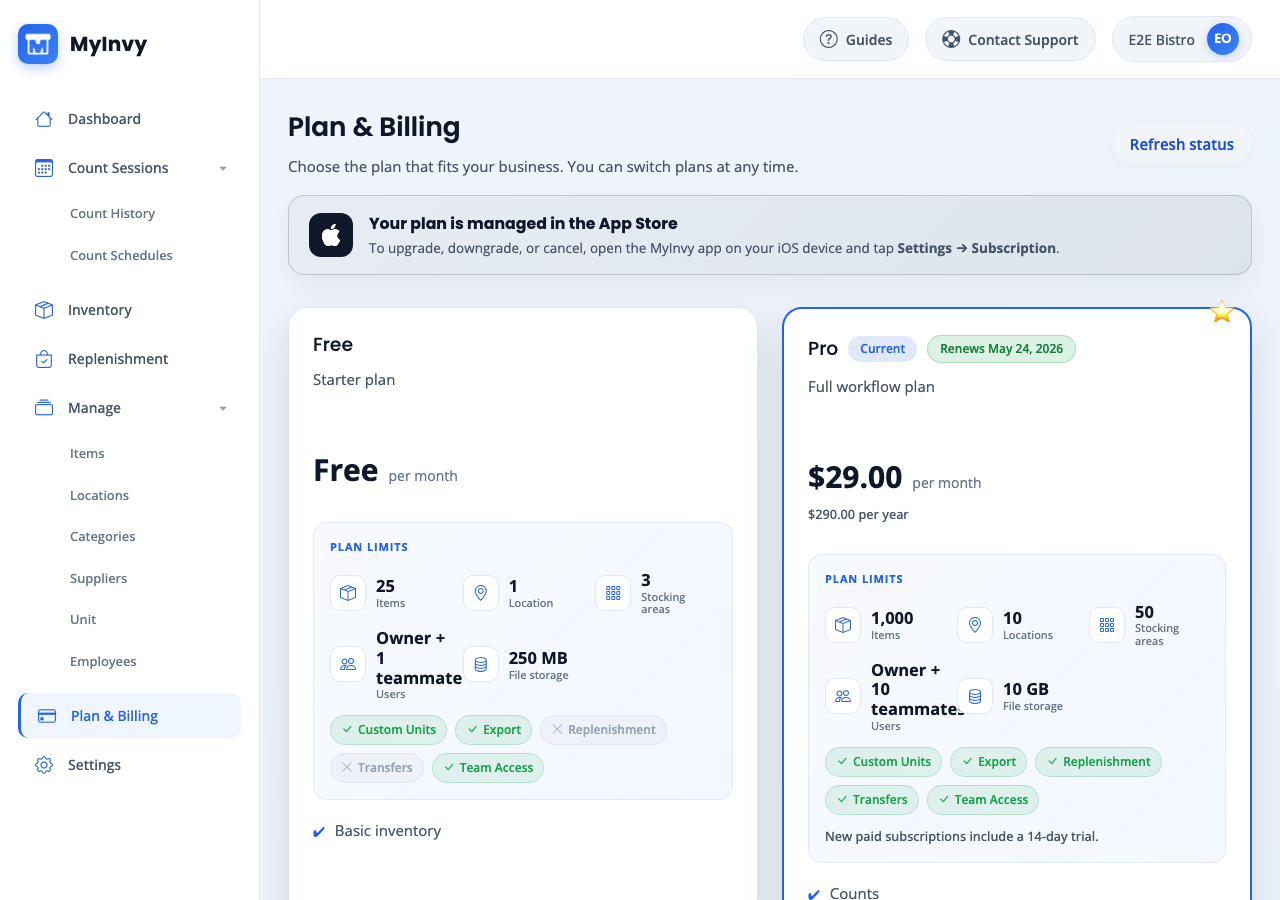
Managed in App Store banner explaining subscription changes must happen in the iOS app.
Success Criteria
Plan & Billing reflects the active subscription state, current usage, and organization limits.
Troubleshooting Tips
- If Choose plan is disabled, you may already be on that plan or the subscription is managed outside the web app.
- If over-capacity warnings appear, reduce usage or choose a plan that supports the current organization size.
- If checkout success does not update the plan immediately, click Refresh billing status.