
Objective
Invite teammates, assign roles, limit location access, resend invitations, and remove access when appropriate.
Prerequisites
- Your plan allows additional users.
- You are an owner or manager with invitation access.
- Locations exist when you want to limit access by location.
Step-by-step Instructions
Open Employees
Navigate to Manage > Employees. Review seats used, current people, recent invitations, and each teammate role, location scope, and last active value.
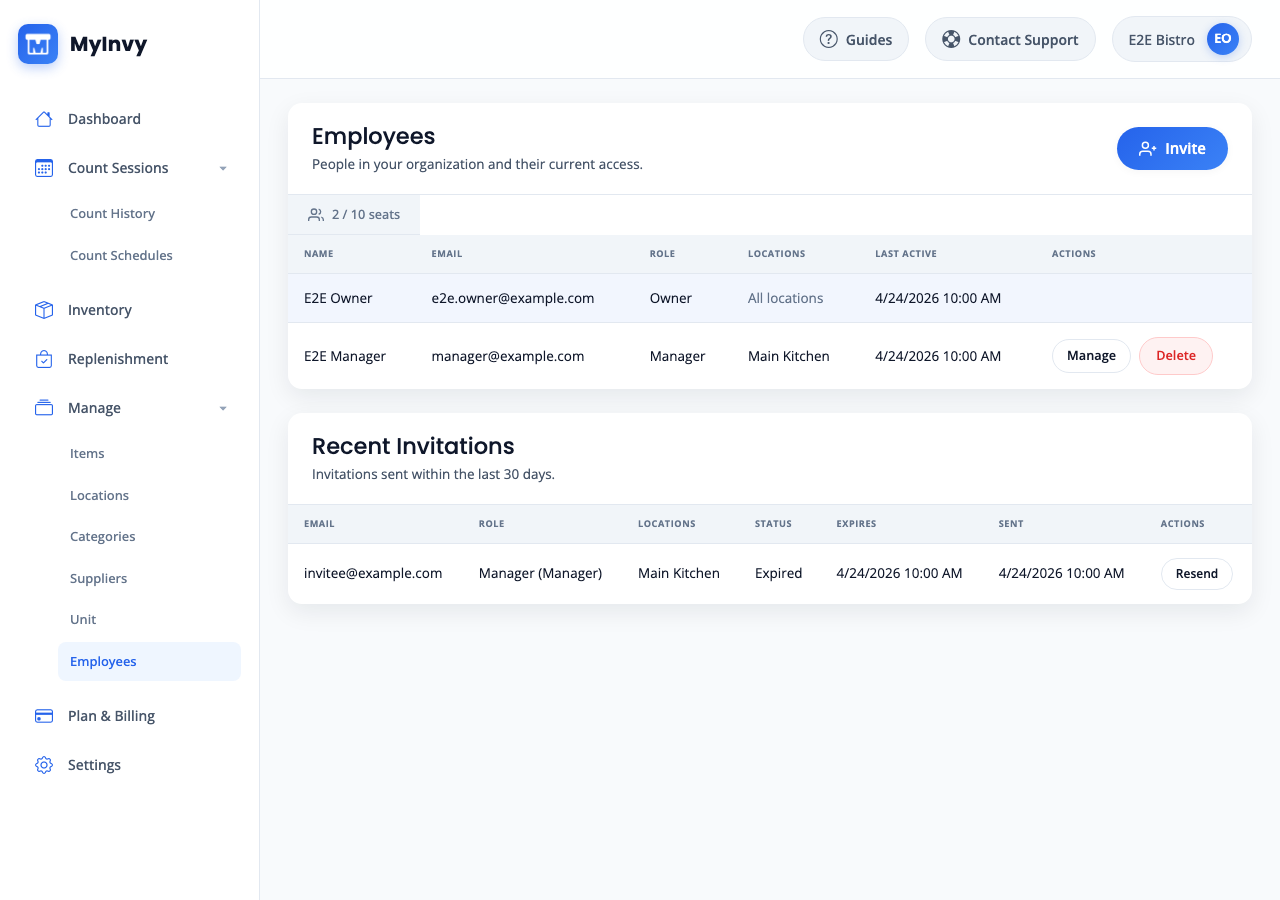
Employees page with people table, seat usage, Invite button, and Recent Invitations. Invite a teammate
Click Invite. Input Email, First name, Last name, and Role. Check Locations to limit access or leave all unchecked for every location. Click Send invitation.
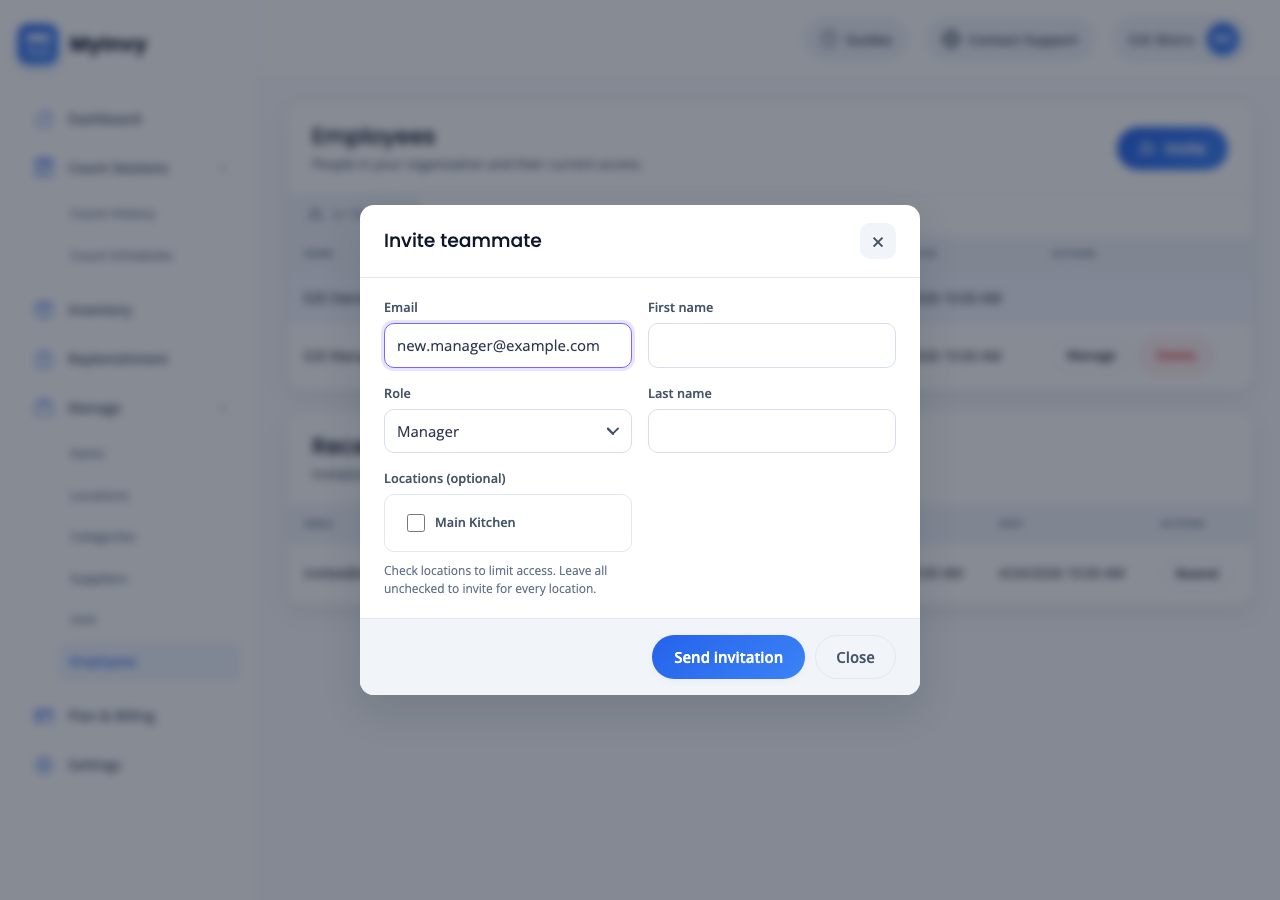
Invite teammate modal with email, name, role, locations, Send invitation, and Close. Resend a pending invitation
In Recent Invitations, locate the invitation and click Resend when the action is available.
Recent Invitations table with Status, Expires, Sent, and Resend action. Manage an existing teammate
Click Manage on a teammate row. Update Name and Locations. Owners can also change Role when the role selector is shown. Click Save changes.
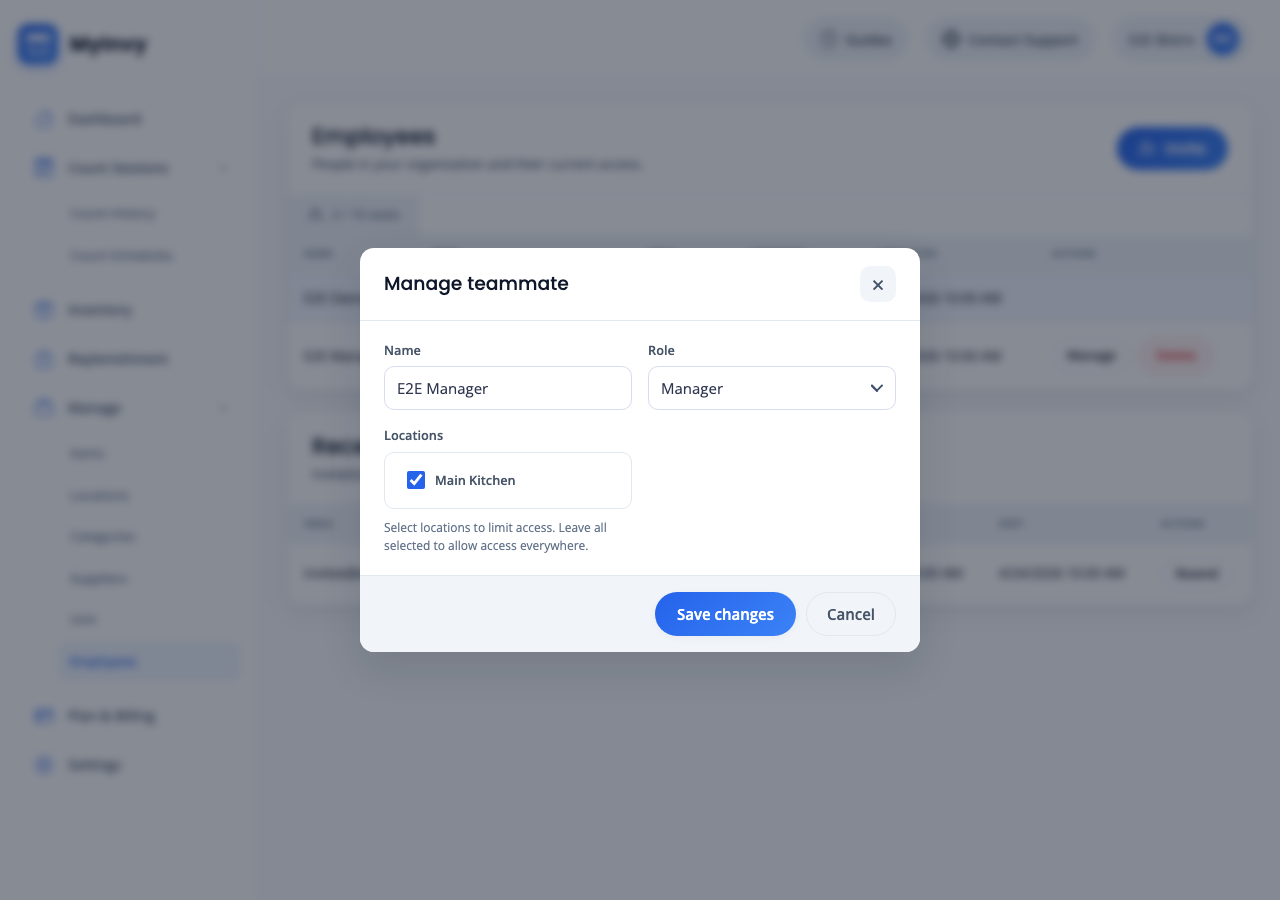
Manage teammate modal with Name, Role, Locations, and Save changes. Remove access
Click Delete on a teammate row, review the confirmation, and click Remove teammate only when that person should lose organization access.
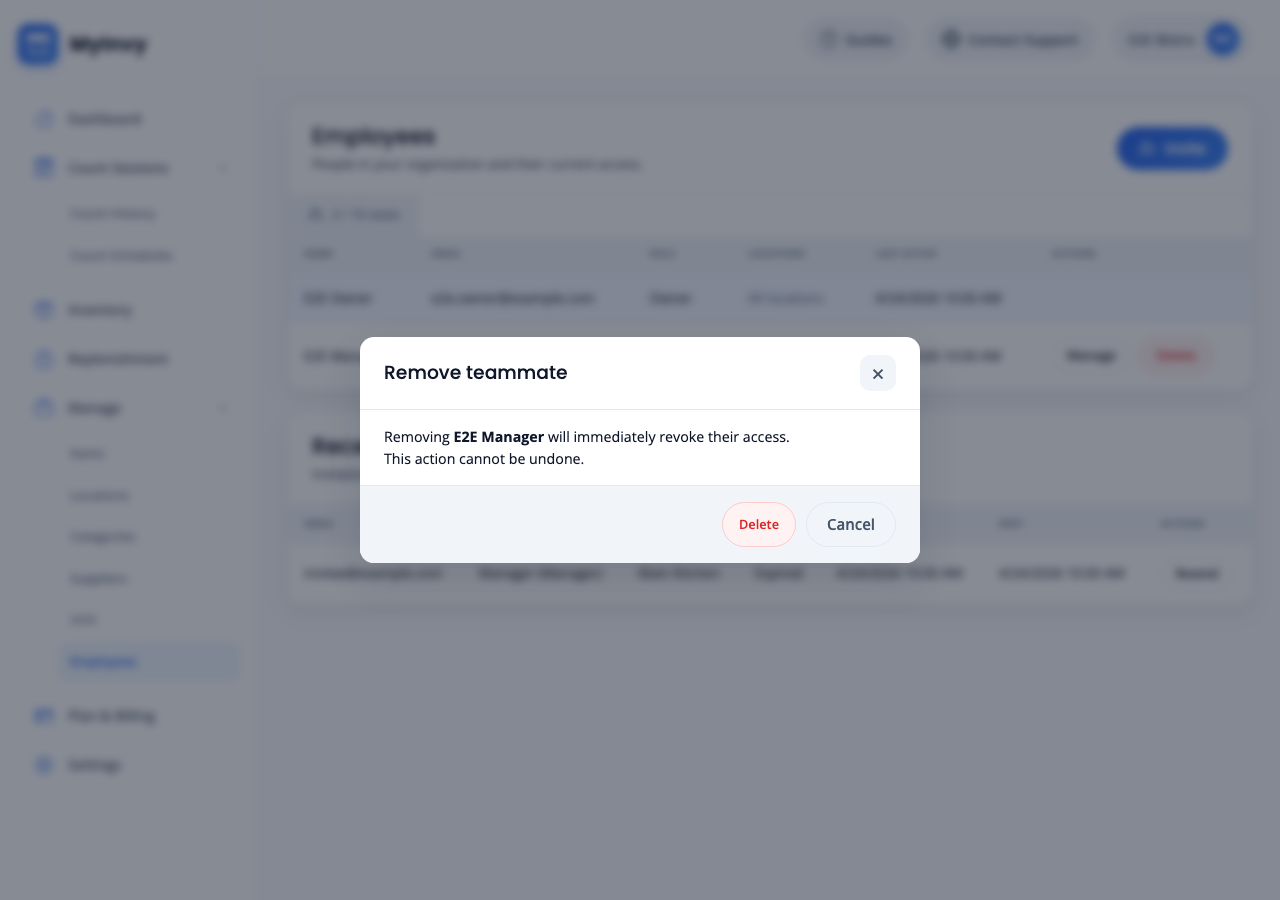
Remove teammate confirmation modal.
Success Criteria
The teammate receives an invitation, an invitation is resent, or the selected person has updated role or location access.
Troubleshooting Tips
- If Invite is disabled or hidden, your plan, role, or seat limit may block additional invitations.
- Managers can manage or delete employees only when they share location access; owners can manage managers and employees.
- If an employee cannot see a location, open Manage teammate and update their Locations selection.