
Objective
Keep profile details, password access, organization information, assigned-location visibility, and glossary access current from Settings.
Prerequisites
- You are signed in.
- Only owners can update organization-level fields.
- Managers and employees can view assigned locations in Settings.
Step-by-step Instructions
Open Settings
Click Settings in the sidebar.
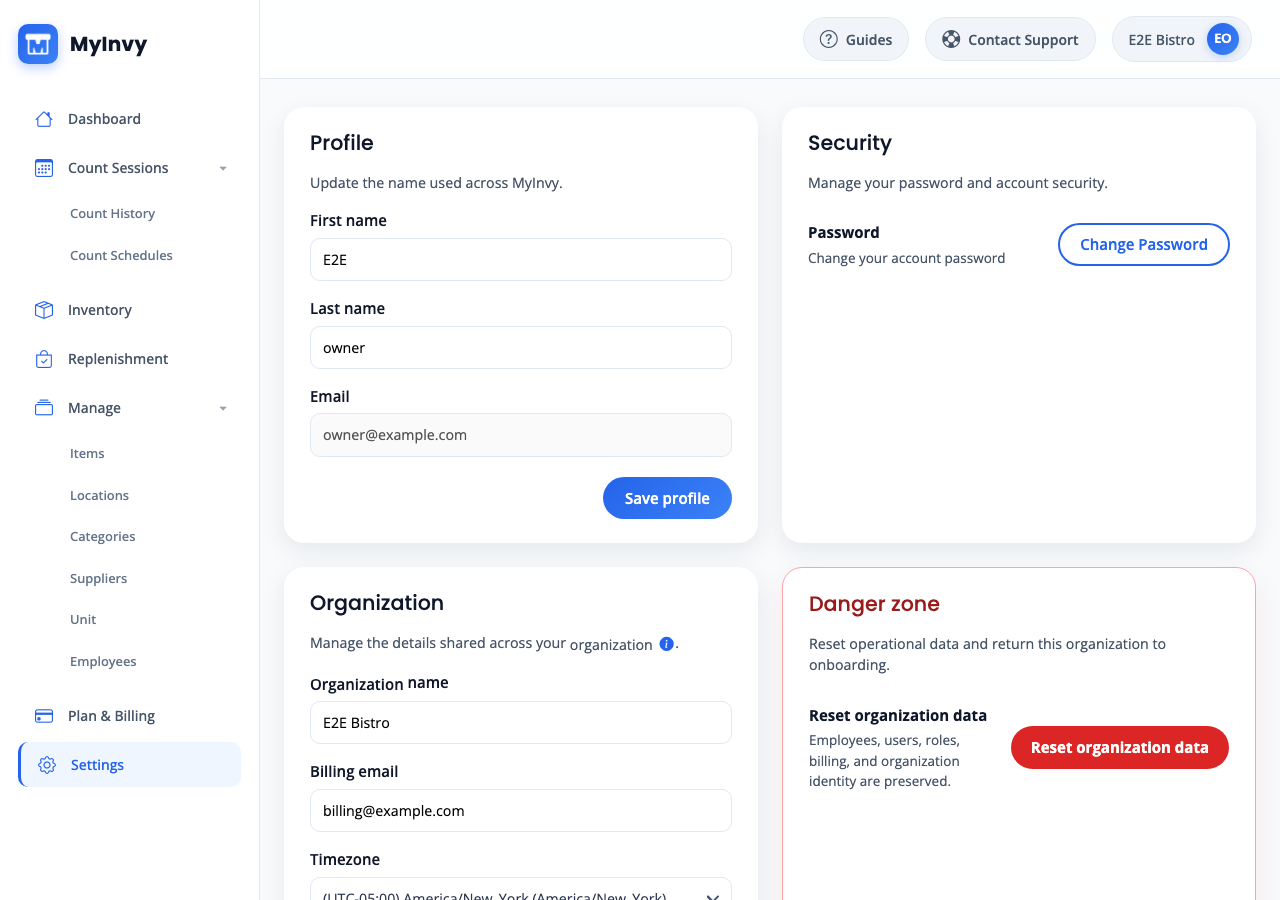
Settings grid with Profile, Security, Organization, Assigned locations, and Glossary cards. Update profile fields
In Profile, input First name and Last name. Email is read-only. Click Save profile.
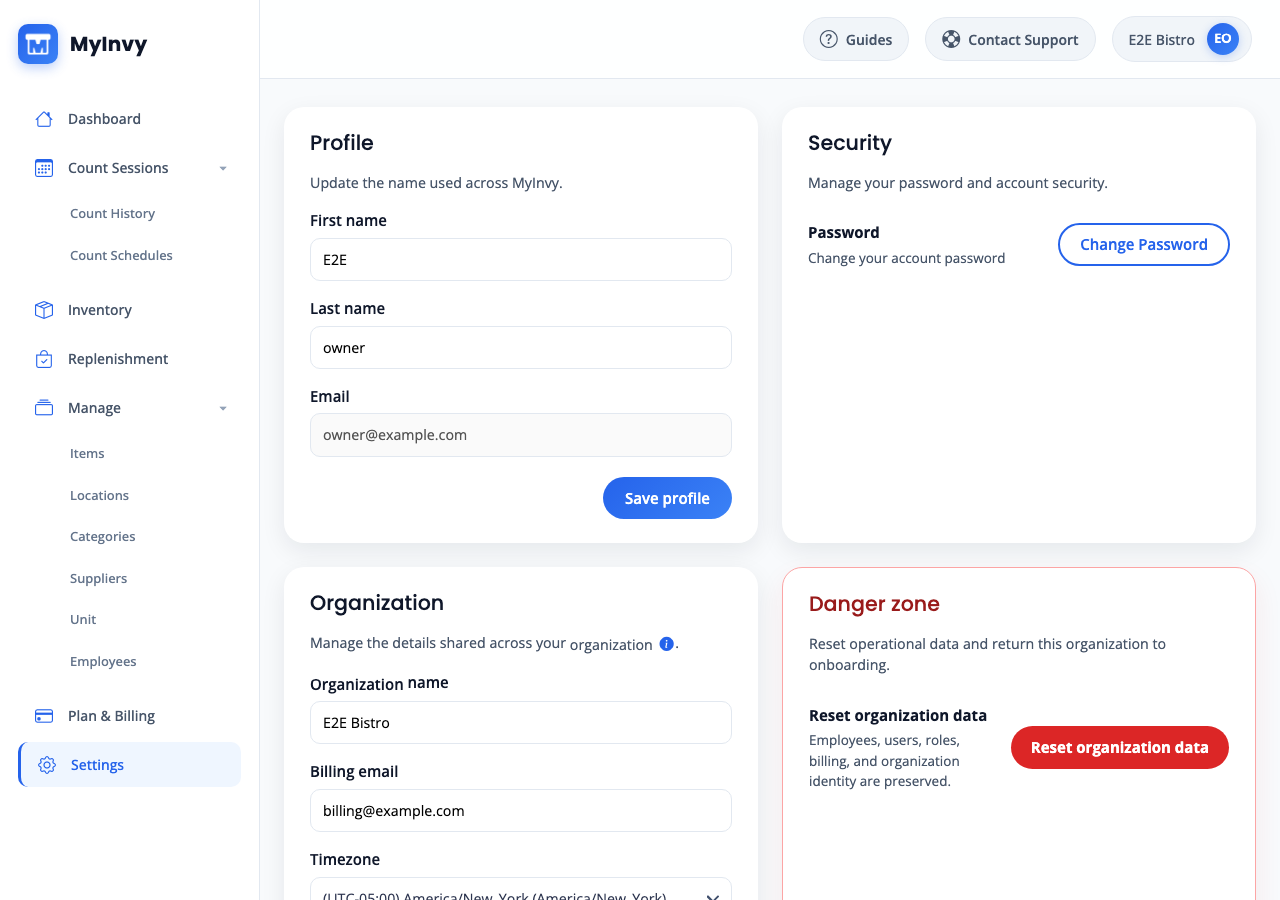
Profile card with First name, Last name, Email, and Save profile. Change password
In Security, click Change Password. Complete the identity provider password flow when it opens.
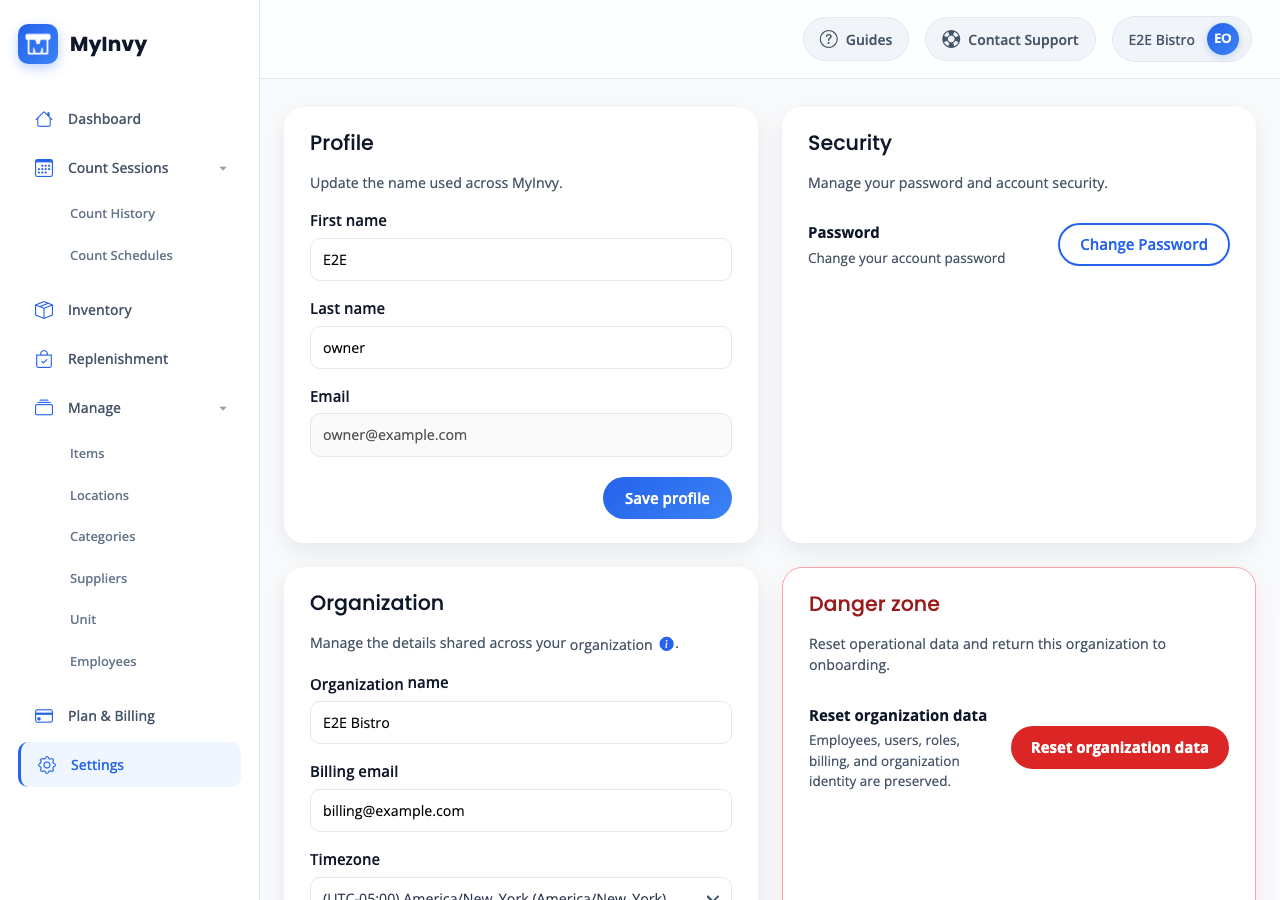
Security card with Password and Change Password button. Update organization fields
Owners can input Organization name, Billing email, and Timezone, then click Save organization. Managers and employees see read-only organization details.
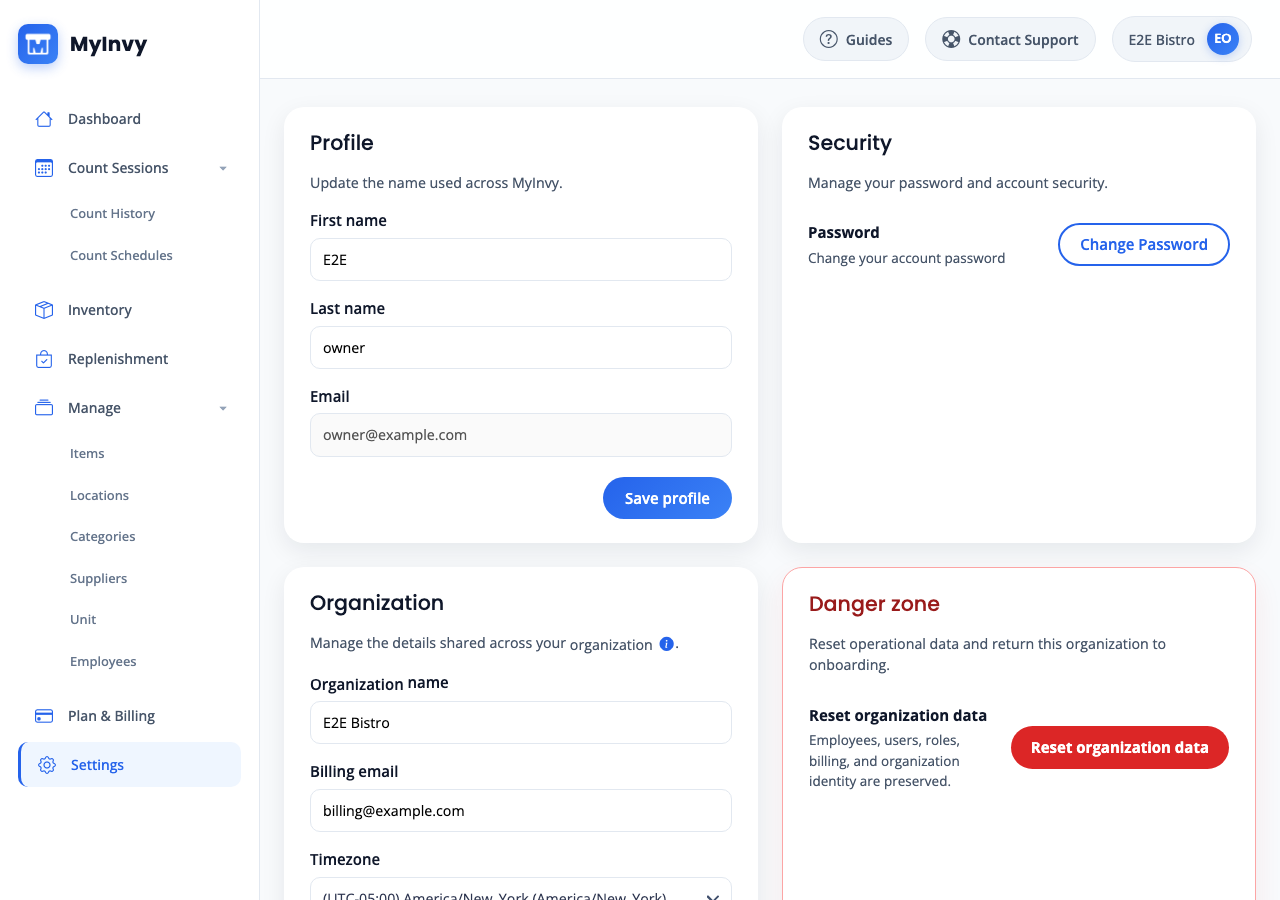
Organization card with editable owner fields and Save organization. Review assigned locations or glossary
Managers and employees can review Assigned locations in Settings. Any signed-in user can click Open glossary to review MyInvy terminology.
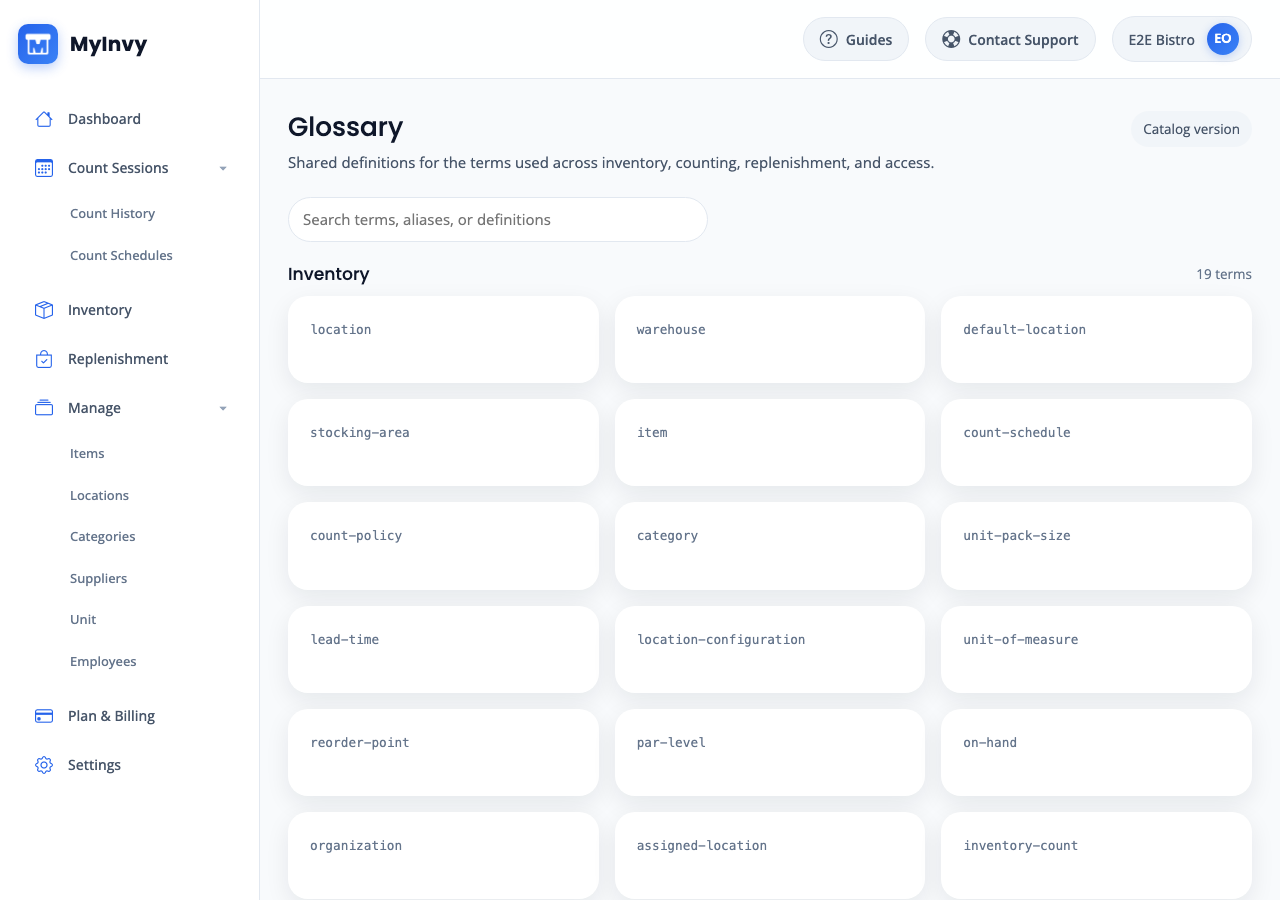
Settings Glossary card and Glossary search page.
Success Criteria
Profile or organization changes are saved, password change is started, or Settings displays the current assigned-location and glossary information.
Troubleshooting Tips
- If organization fields are read-only, your role does not allow organization edits.
- If you try to leave with unsaved changes, choose whether to discard or stay on the page.
- If Save organization fails, review required fields such as Organization name and Billing email.